

This is a new booking system, and it is a long way on from the one you may already know. Years of feedback went into it. The system is better. The client can do more. You have more say over who books, and when.
If you are still on the older booking system, this is the one to move to. If you are already with us, this is the work that has been going in. We are growing it, improving it, and keeping it fresh.
A booking link you will be confident to send your clients to
They open it on their phone. They see your photos, a short note about the business, the services you have allowed, and the staff you have allowed.
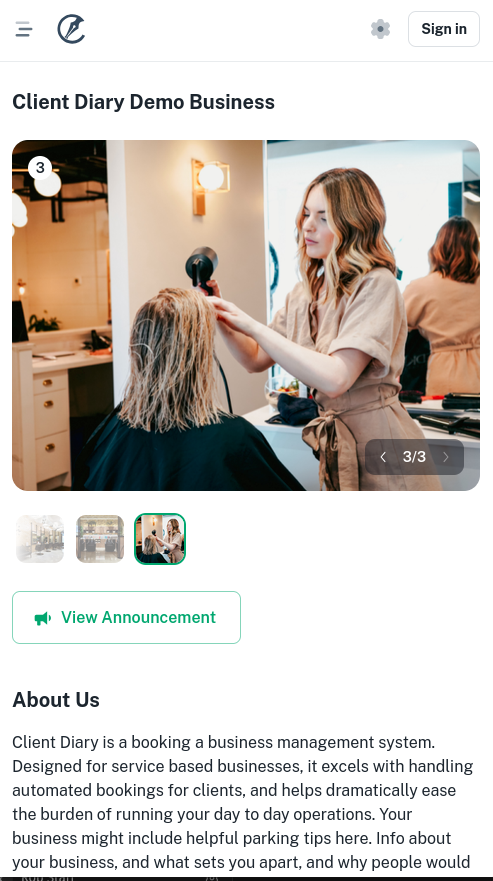
The older booking system was a banner and a background. This one is a proper booking system. If you have more than one location, each one can have its own photos.
It still follows the day you already have. Rosters, breaks, and the appointments already in the diary. It will not offer a time you cannot take.
You can look at it here: book.clientdiary.com/business/DemoBusiness.
Clients can look after their own visits
A client can make an account. It does not cost them anything. They sign in and see the visits coming up, and the ones they have already had, as cards on their phone.
You can ask them to sign in before they book. You can let them cancel, rebook, update their own details, and update the note on the visit. You choose how many hours before they can cancel.
None of that was on the older booking system.
You have more control
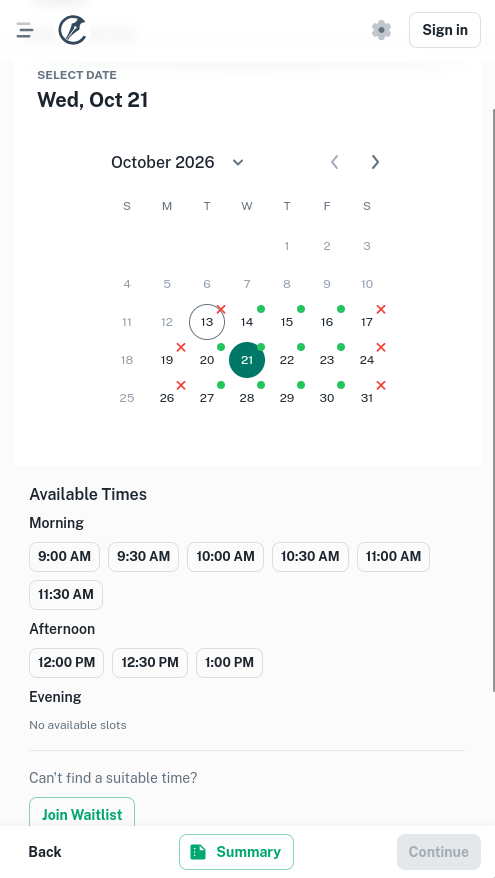
You can keep online booking for clients you already have. That can be the whole business, or just one staff member. You can block one client from booking again. You can turn the waitlist off.
You can show prices. You can keep several services with the one staff member, so the visit does not get split across staff.
The settings you already rely on are still there. How soon a booking can be made, how far ahead, a Deposit or Booking Fee, and the messages that go out when a booking comes in.
There is no New Client Fee from Client Diary when a new client books.
The older booking system, next to the new one
The difference is large. This is the full list, for anyone who wants to see what the years of work added.
| Older booking system | New Online Booking | |
|---|---|---|
| What clients see | One banner, and a background colour or pattern | A photo gallery, up to 5 photos, and a short about your business |
| Photos for each location | No | Yes |
| Show service prices | No | Yes |
| Several services kept with one staff member | No | Yes |
| Share a link to chosen services | No | Yes |
| Book a class | No | Yes |
| A client account, free for them | No | Yes |
| They must sign in before they book | No | Your choice |
| Upcoming visits, as cards on their phone | No | Your choice |
| Past visits | No | Your choice |
| They can cancel, up to a set number of hours before | No | Your choice |
| They can rebook | No | Your choice |
| They can update their own details | No | Your choice |
| They can update the note on the visit | No | Your choice |
| Only clients you already have, for the whole business | No | Yes |
| Only clients you already have, for one staff member | No | Yes |
| Block one client | No | Yes |
| Waitlist | Always there | You can turn it off |
| Your own thank-you page | No | Yes |
| Google Analytics | No | Yes |
| A link, and a QR code | Yes | Yes, on the new address |
| Choose which staff can be booked | Yes | Yes |
| Choose which services can be booked | Yes | Yes |
| Follows the roster, breaks, and appointments already in the diary | Yes | Improved |
| How soon, and how far ahead | Yes | Improved |
| After hours booking | Yes | Yes |
| Hour and half hour slots | Yes | Yes |
| Time slot interval | Yes | Yes |
| Approve a booking automatically | Yes | Yes |
| An email when a booking comes in | Yes | Yes |
| Reduce gaps | Yes | Yes |
| An announcement clients see | Yes | Yes |
| Terms and conditions | Yes | Yes |
| A Deposit or Booking Fee when they book | Yes | Yes |
| A text when a booking is requested, approved, or declined | Yes | Yes |
Turn it on
In Client Diary, open My Account, then Add-Ons, then Online Bookings Setup.
If you are still on the older booking system, this is the new one. Switch it on, then put the link where clients already look for you. Your website, Facebook, and Instagram.
The setup guide is here: How to set up online booking.
If you are moving from the older booking system, here is how to make the change.
Thank you
Thank you. This new Online Booking system is here because of you. Your suggestions, and the improvements you asked for, shaped it.
We are grateful, and we appreciate every one of them. You are the reason we keep building.
Please keep them coming. We want to keep improving, and to keep growing the system the way you want it.