A receive delivery is to process the products that you have received from your supplier.
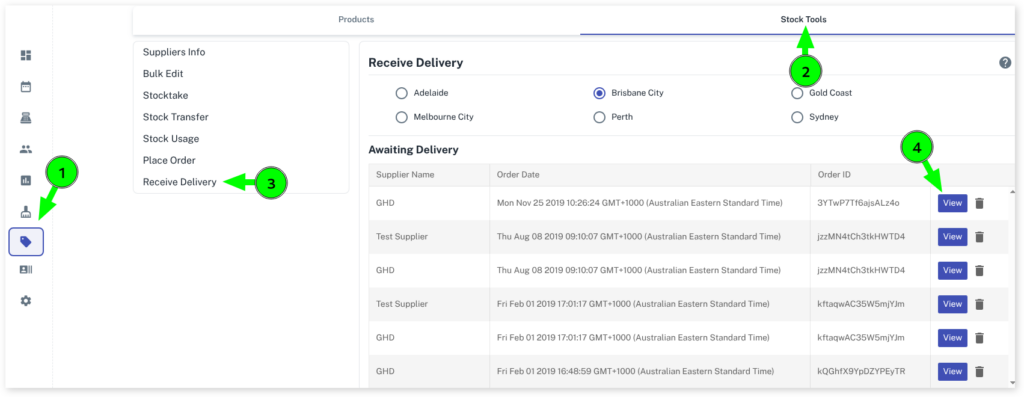
Where to Find Received Delivery
- Select the Products Menu
- Click on Stock tools
- Click on Receive Delivery
- Select which business location you want to do received delivery from
- Under Awaiting Delivery click on the View button
Note: To do a Receive Delivery in Client Diary you must already have a current stock order already processed for this option to work Click Here on how to do this.
How to Record Received Stock Delivery
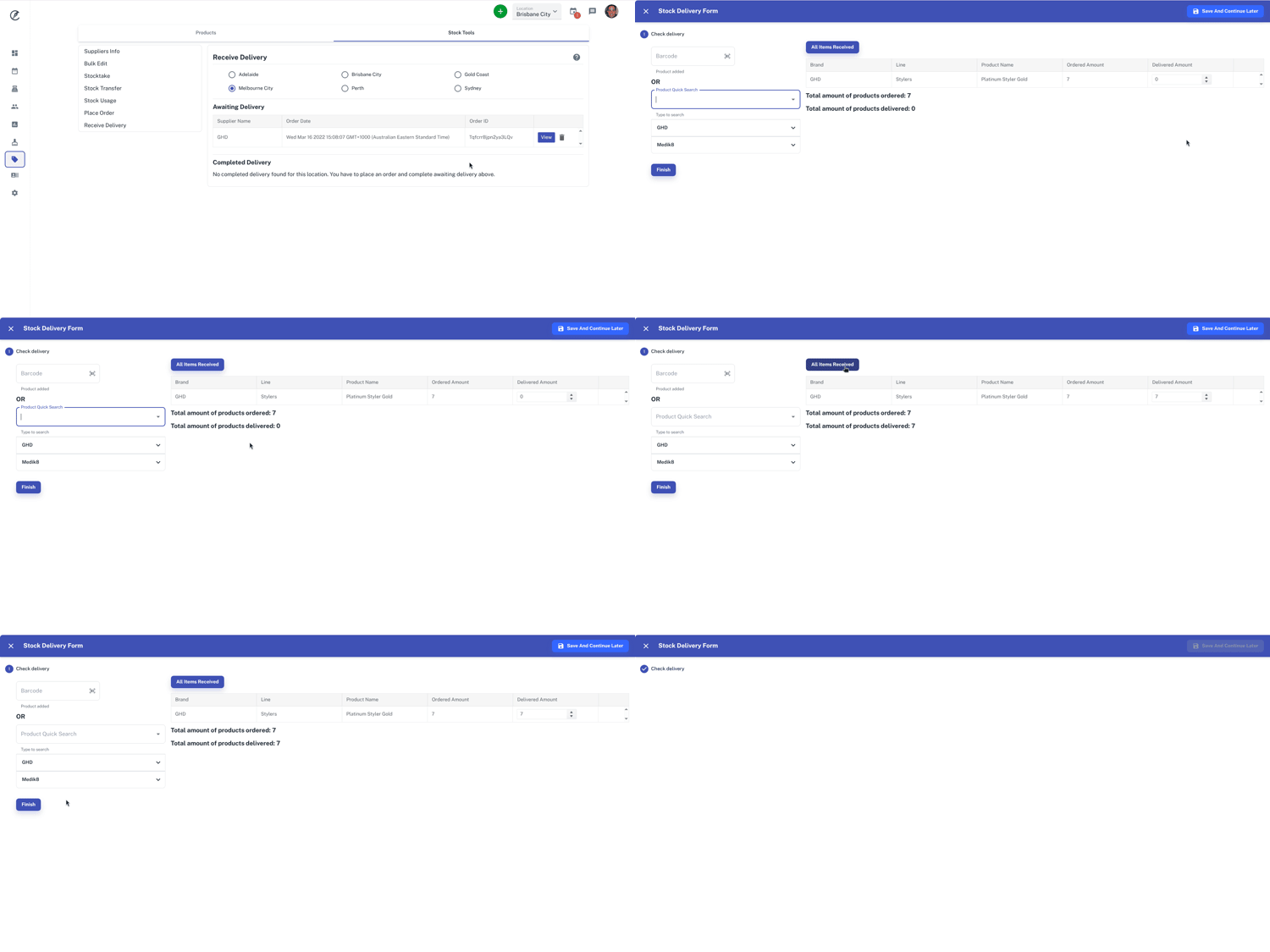
After viewing the stock order you can now enter the actual amounts you received. As an optional method, after the received stock delivery appears, there is an option at the top called All Items Received. This will automatically pre-fill any products you ordered into delivered amount.
How to Add Extra Stock that was Received but Not Ordered
If you have received extra stock that was not included on your order, you can add it to your active stock count.
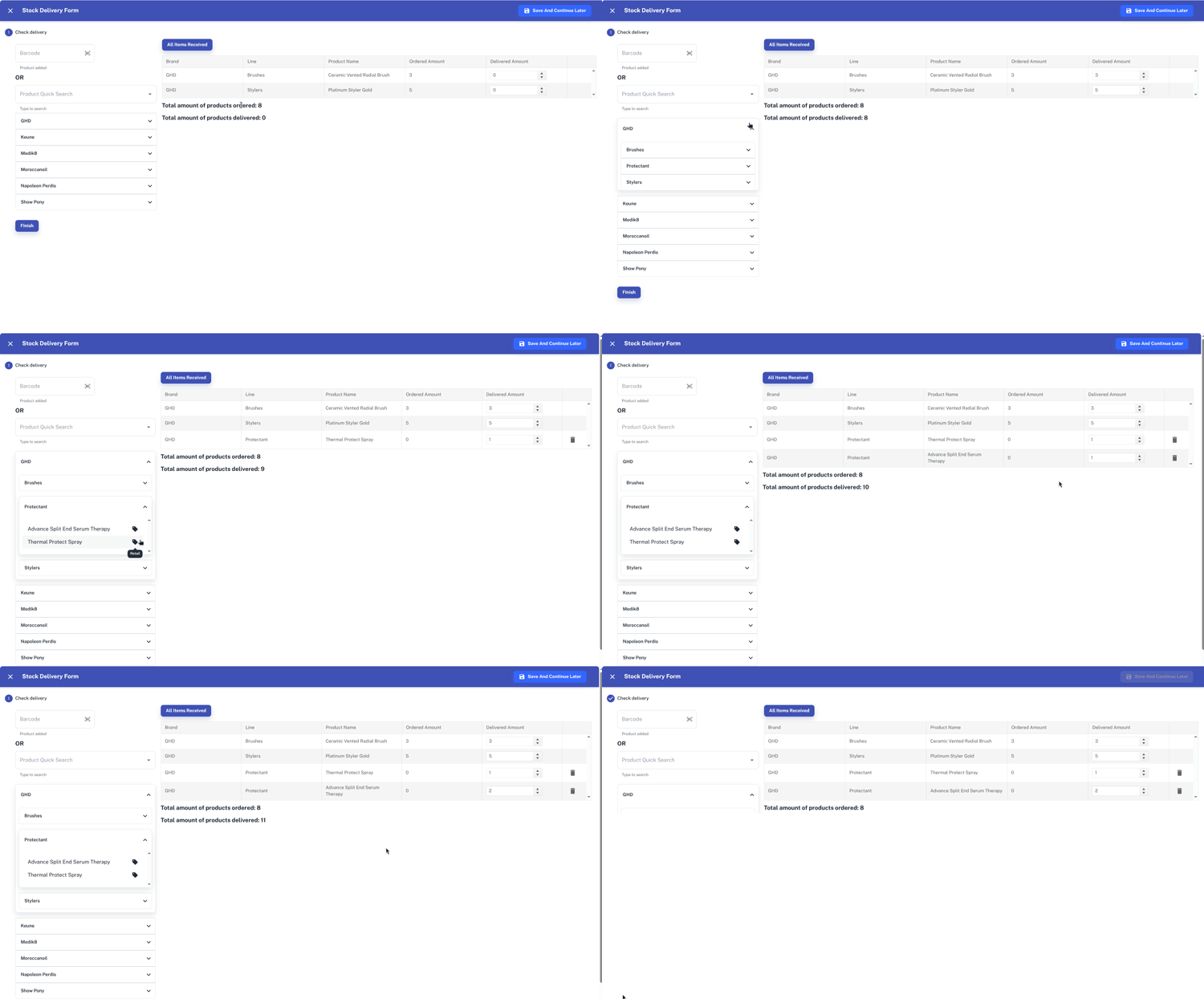
- To add products by using barcode scanner click in the box labelled Barcode and scan or type the barcode to add it in
- Or search the product name, line or brand in the Product Quick Search box or the click on the drop-down menu below the search product box as shown in the screenshot below.
- Once the product has been added, adjust the stock delivery amount if necessary
- Click on Finish to finalise the Stock Delivery
Note: After you Finish the Stock Delivery Form it will add the Delivery Amount for each product to their current stock value.
The History of Stock Deliveries
To see previous stock deliveries:
- The Products menu
- Click on Stock Tools in the top blue bar
- Click on Receive Delivery
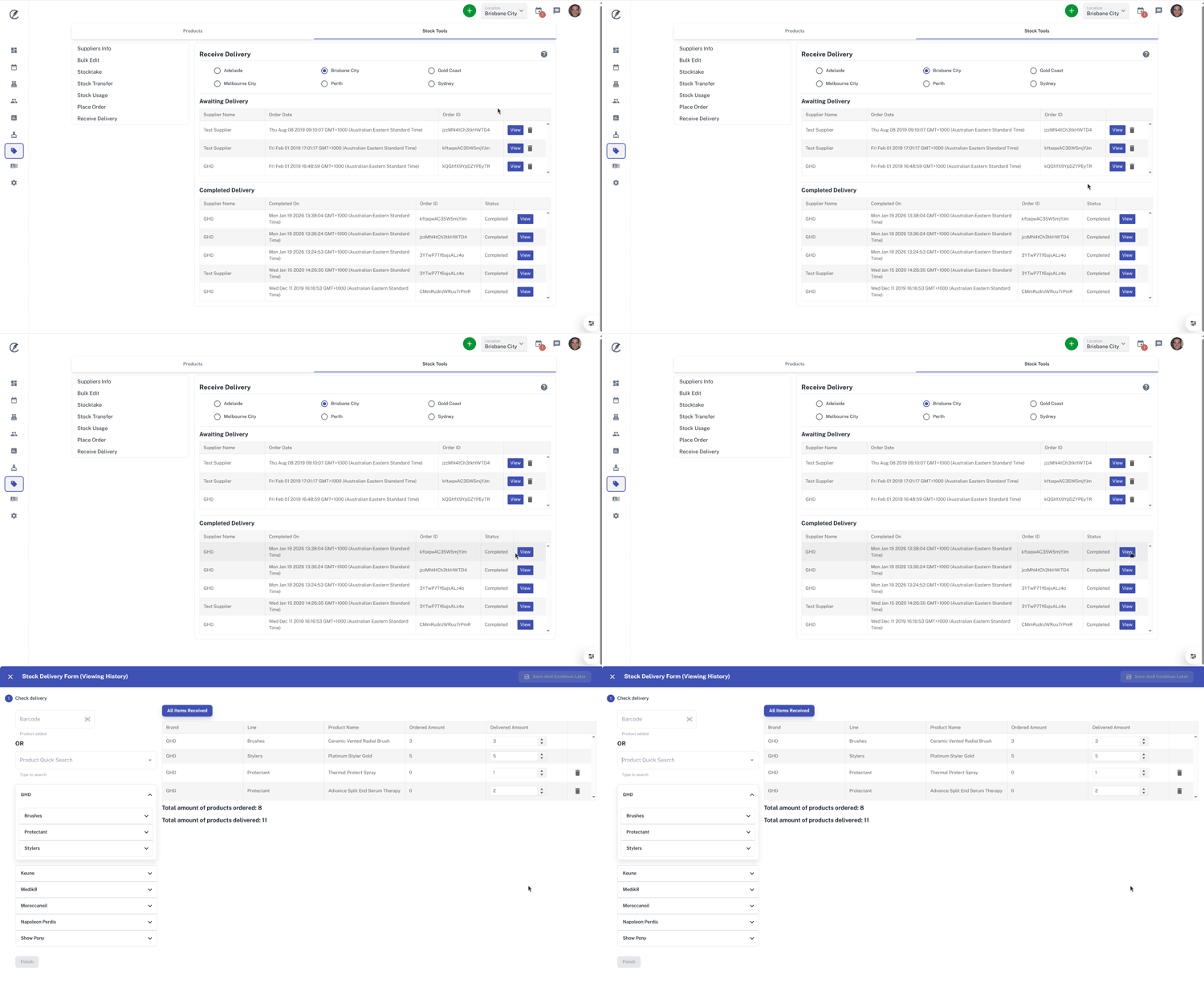
- Under the Completed Delivery it will show previous completed deliveries that have been placed
- Click on the View button to view previous completed deliveries