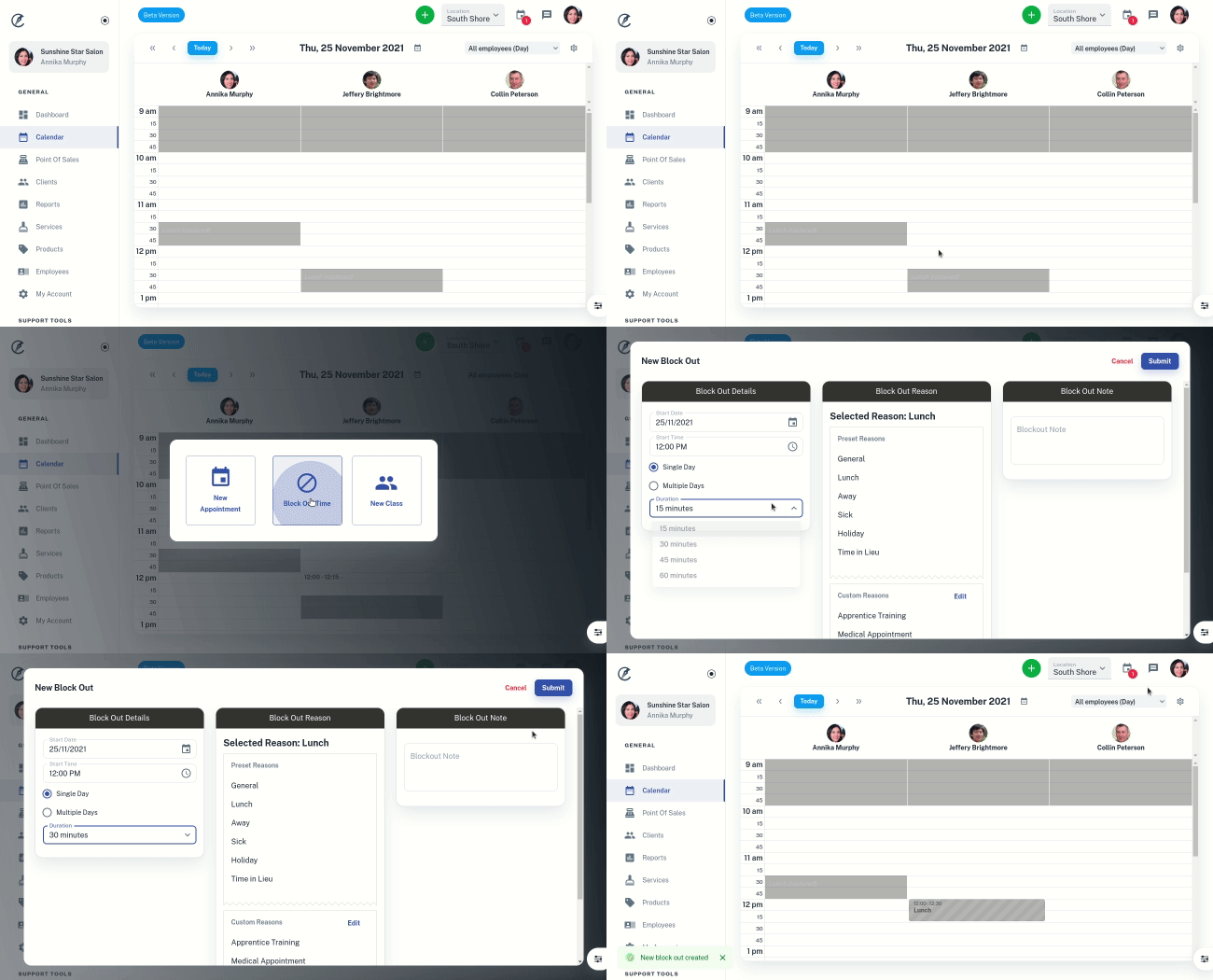
Setting an employee’s roster helps organise who is available each day and also when they are available to be booked online.
- Select the Employees menu
- Search your Employee’s Name
- Press the Roster tab
- Click the Site you’re editing their roster for (if you have more than 1 site/location)
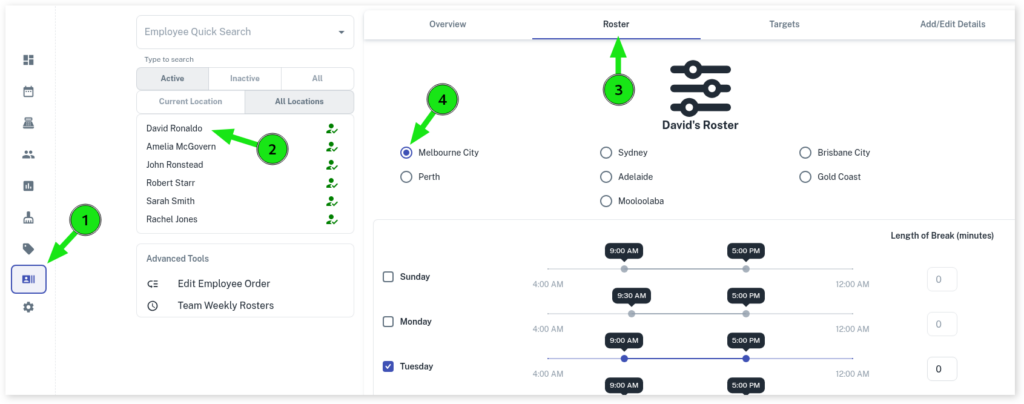
- Select which Days the team member is available
- Adjust the timing using the sliders
- Add the Daily Break Time if you wish
- Set the Length of Break (minutes) if you wish
- Press the Save Roster button
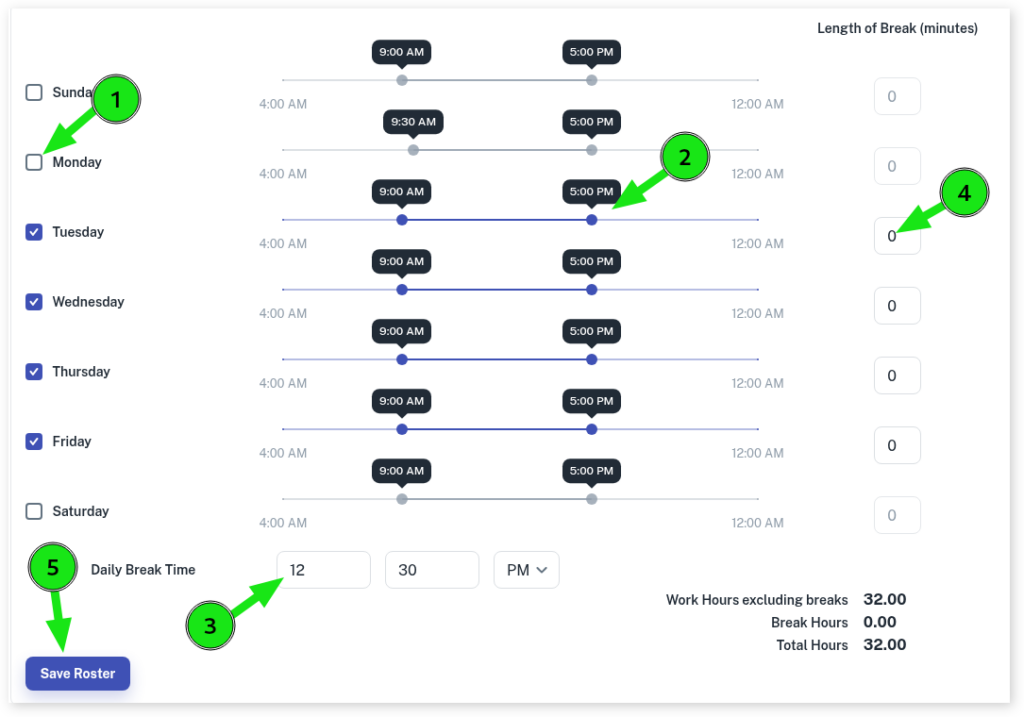
Lunch Break Split Shift
When adding a lunch break via the roster tool it will create split shifts for the day in the Calendar like displayed below.
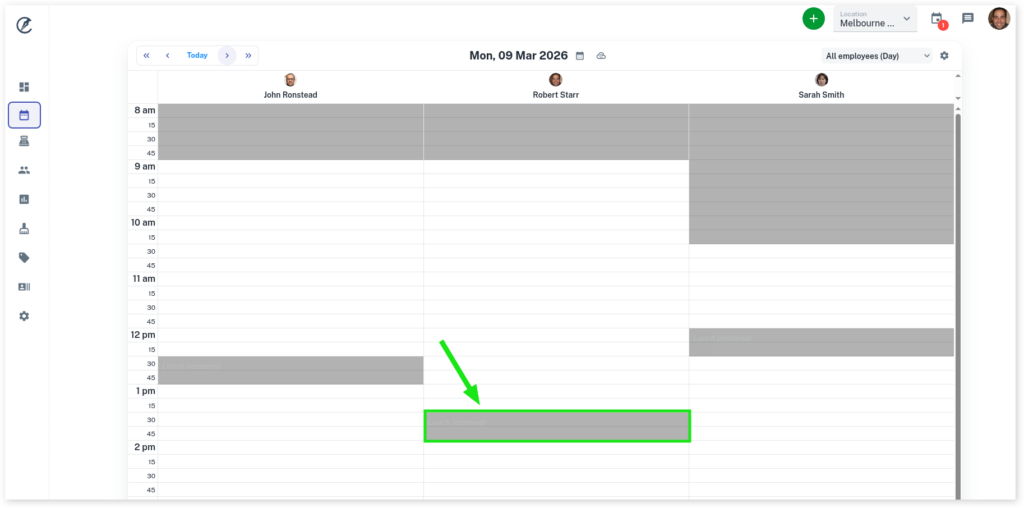
Changing the Rostered Lunch Break Time
Creating a new lunch break in the Calendar will replace the break created by the roster. Step on creating lunch breaks can be found here. Below shows the rostered break disappearing when a new lunch break is created.