
Client Diary has a powerful reporting system to easily and quickly analyze your business.
To view the reports:
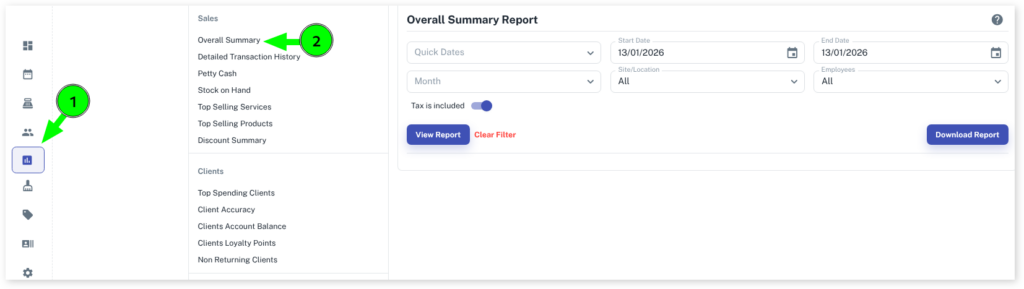
- Select the Reports menu
- Click on Overall Summary in the white left menu
There are multiple options on how to select which time period you want it to show in your reports.
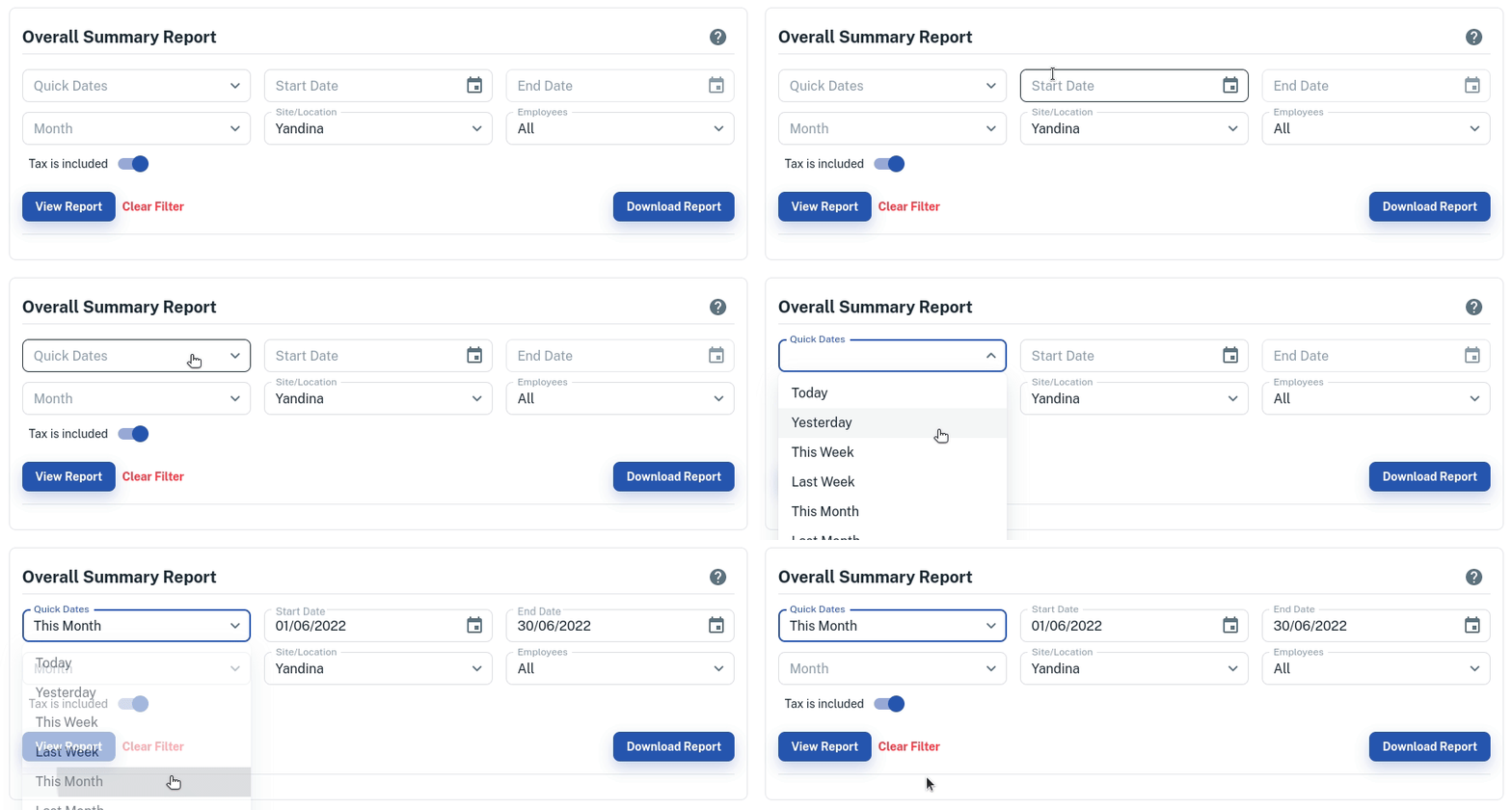
Quick Dates- Is a quick option to choose dates in the report (see screenshot below for example).
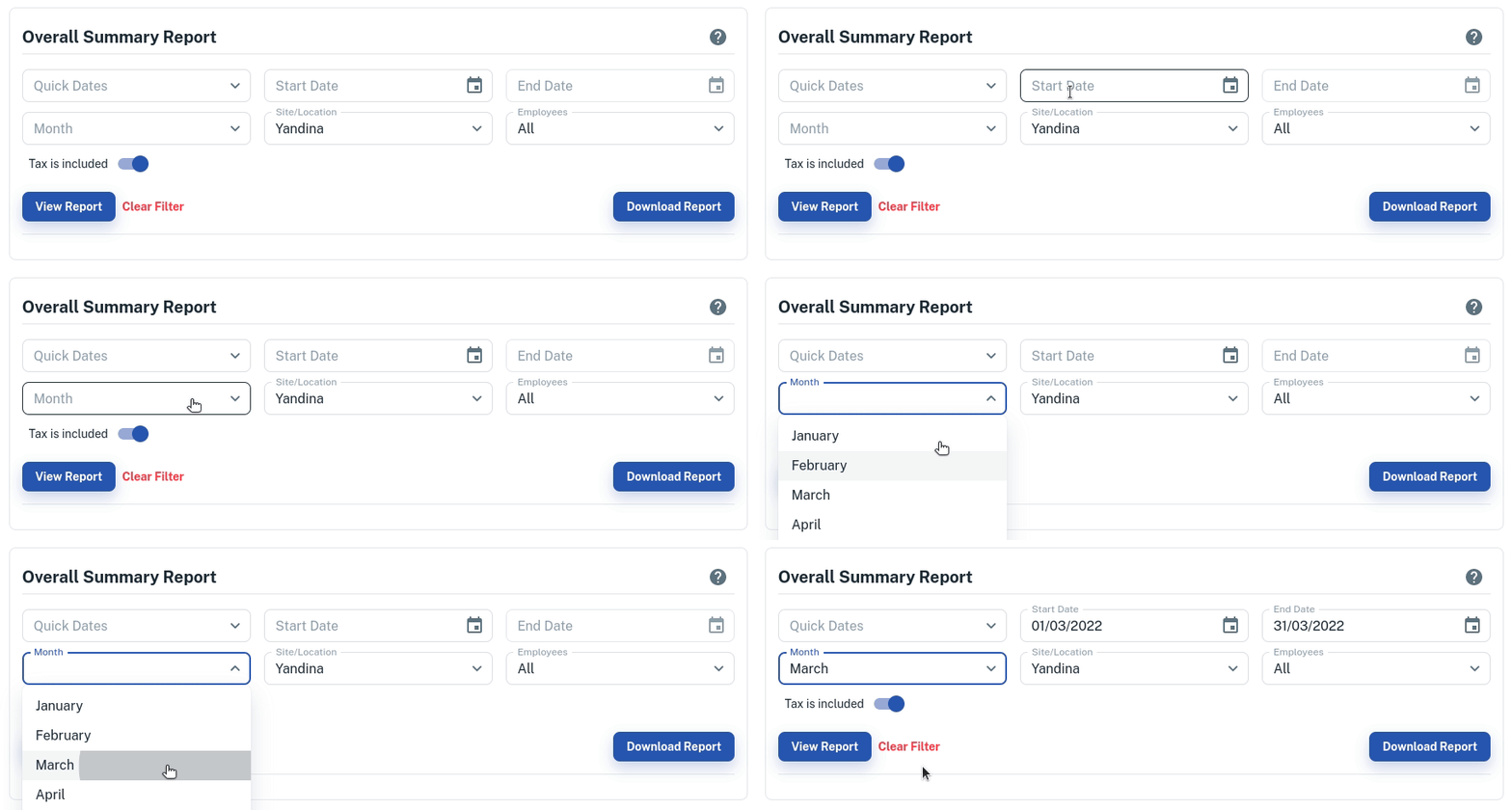
Month- Chooses which entire month of the current year you want to show in the report.
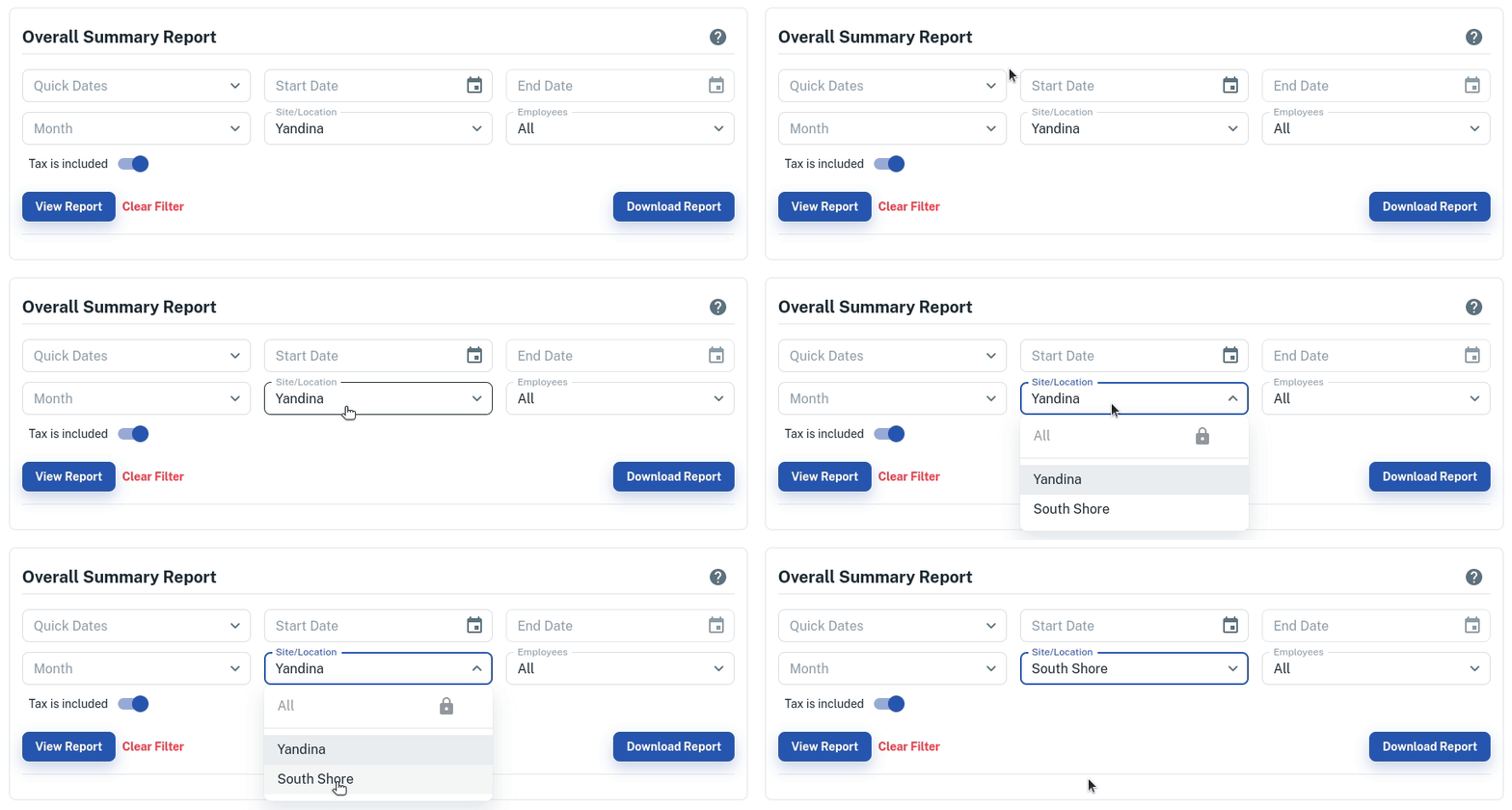
Site/Locations- If you have two or more business locations applied to your Client Diary you can select which business location to only show in the report with the dates for that report applied.
Employees- It will only show the figures in the report of the employee that has been selected.
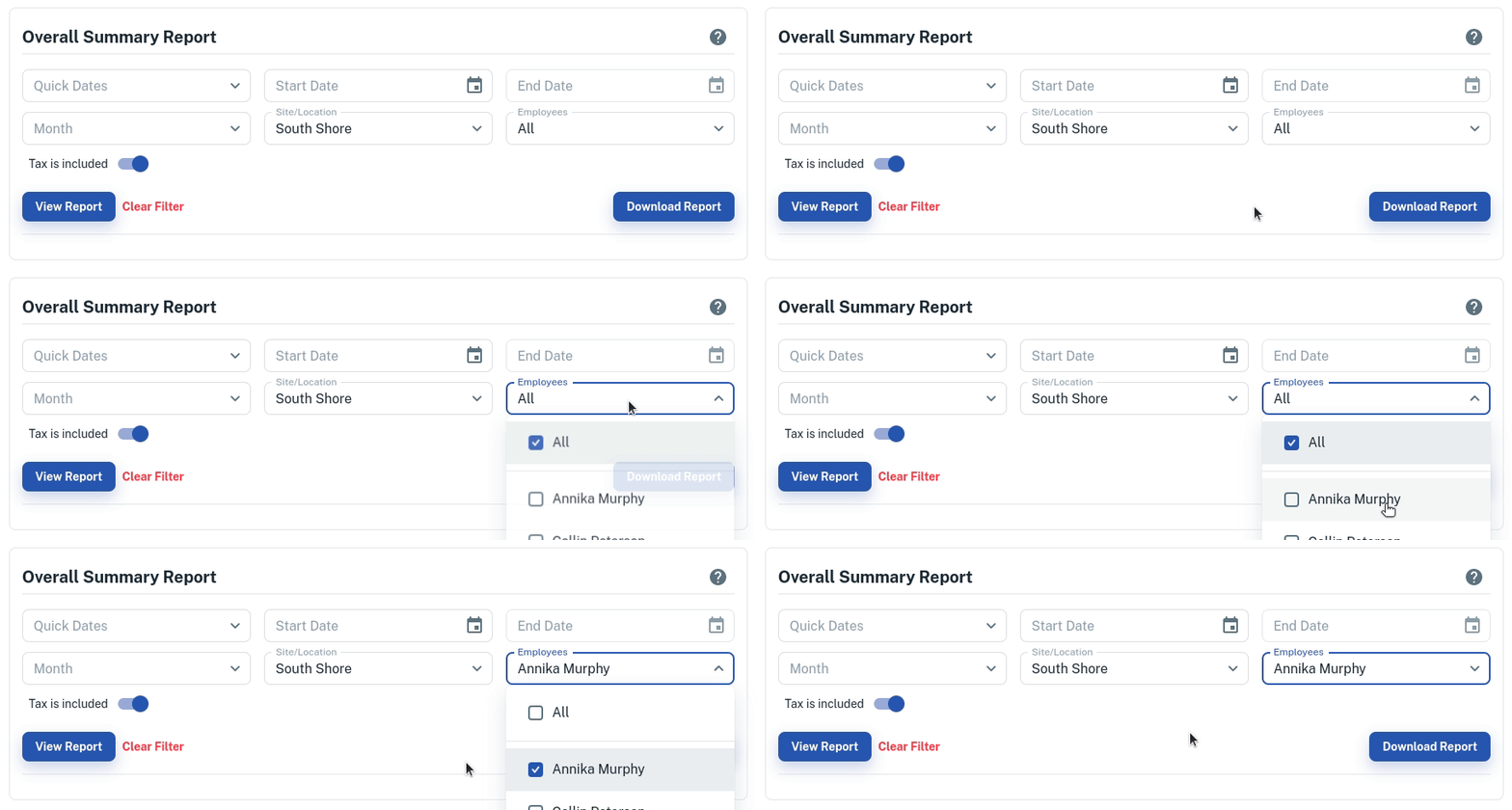
Tax Is Excluded/Tax Is Included- When you want to apply the option of including/excluding tax in the reports. Click Here on how to do this in Client Diary.
Start Date/End Date- When you only want to select specific dates to show the report in.
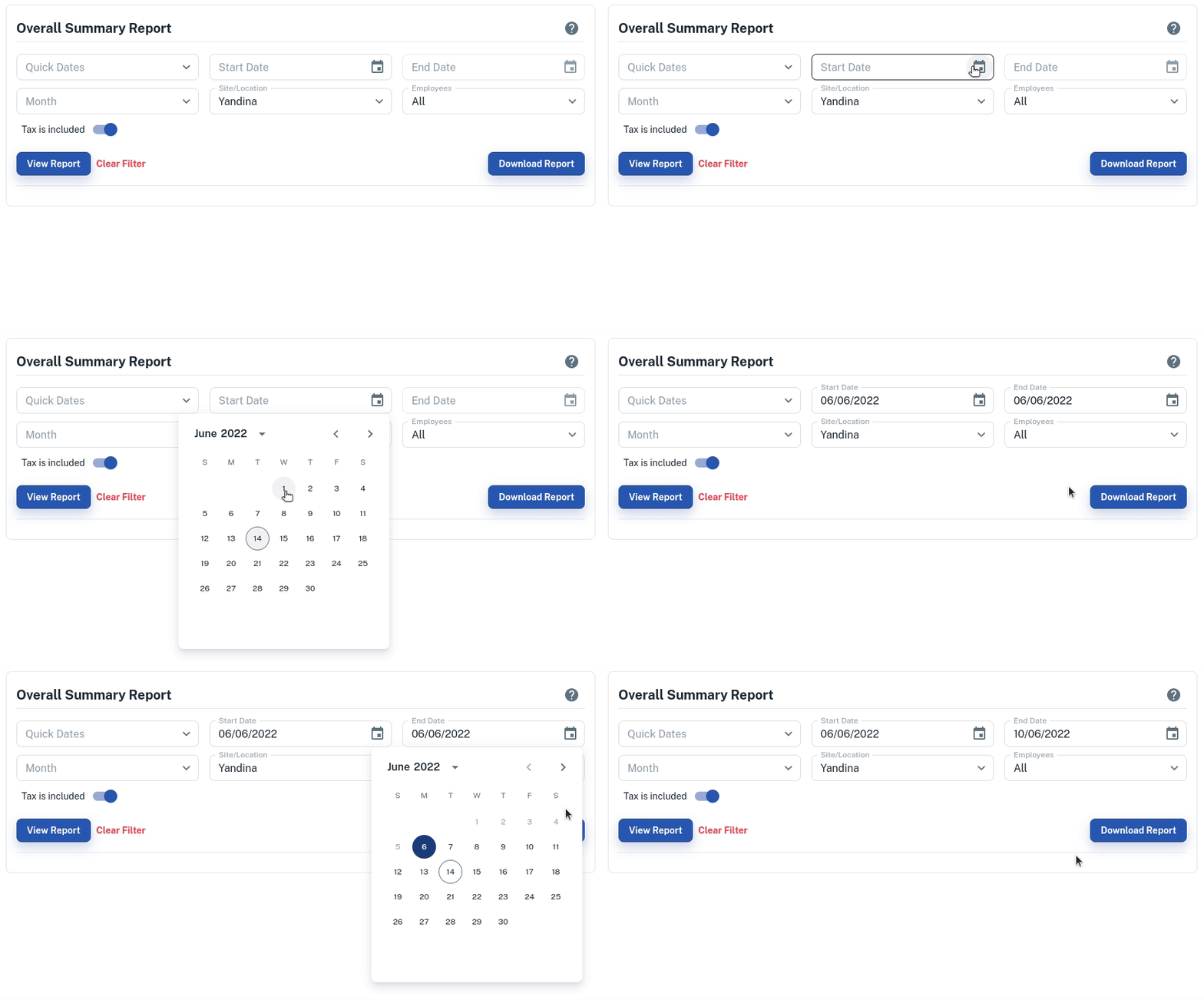
- Once you have selected the date for reporting on, click on the blue View Report button to show the report on the screen
- If you to print out the report you have to View Report and click on the blue Download Report button for it to create a PDF file of the report and then you can print out the report by opening up the PDF and selecting the print option.
How to Read Different Sections in the Report
Takings Analysis – Is all transactions that are finalised in your system and that goes you that goes in your business bank account
Sales – is the sales you have put through Client Diary, as sometimes you might not receive takings from a Service or Product. For example, if the client pays for the sale with a voucher your business won’t receive the taking but will still do the sale
Other listed under Sales – is all the other sales excluding Products/Services that are made in your Client Diary system like deposits, vouchers and surcharges. These amounts can be seen broken down in the Further Information section
Further Information – is a break down of Other in the sales section (what type of transaction they are with the totals)
Rebooking Percentage – Shows:
- Rebooking Percentages – is if a client has rebooked and revisted during the selected time frame
- Future Rebooking Percentages – shows if a client has rebooked an appointment after the time frame with having an appointment within the selected time frame
- If New Clients (clients with 1 finalised booking) have rebooked and have a future booking
- If Existing Clients (clients with 2 or more finalised booking) have booked and have a future booking
- All Client Rebooking – an overall total for all clients if they have a future booking.
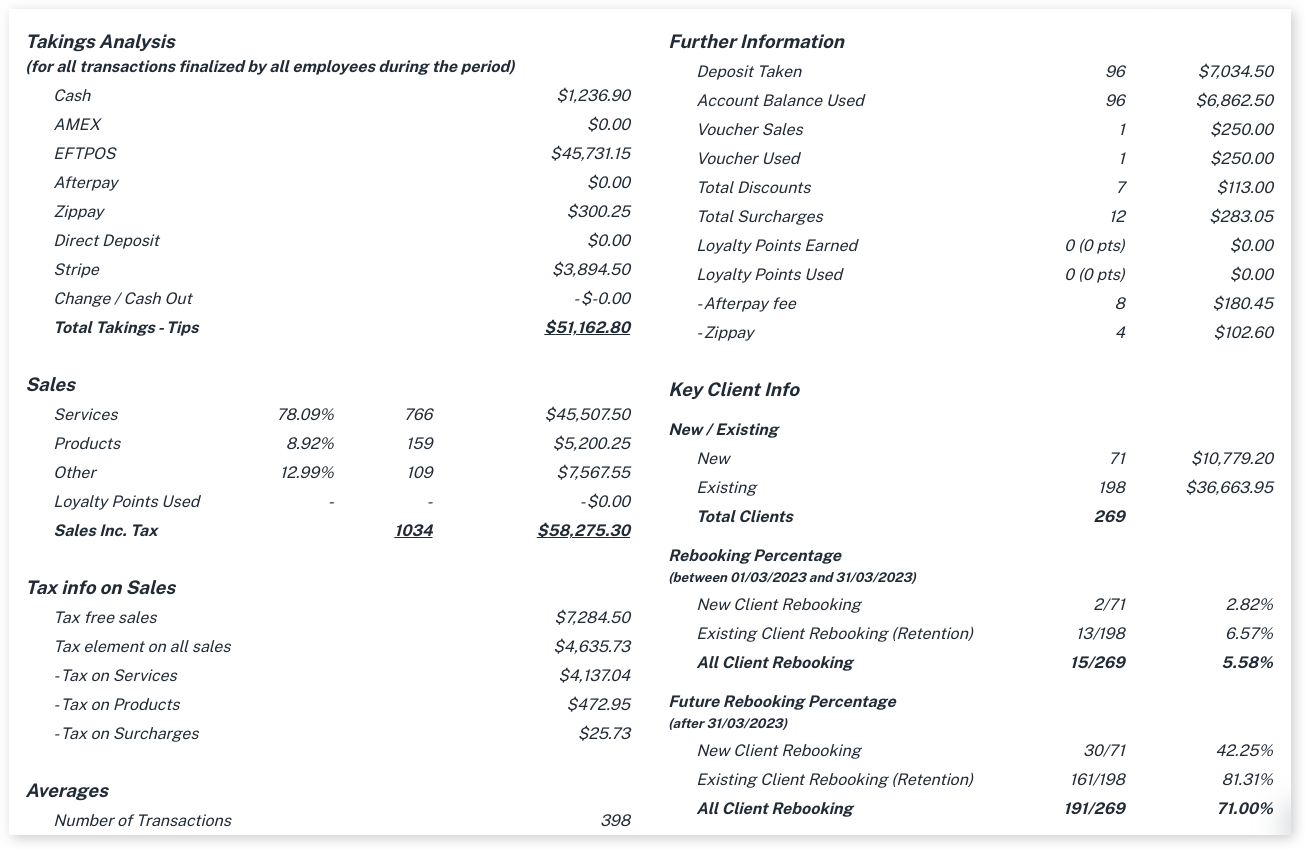
Further Example : Rebooking Percentage
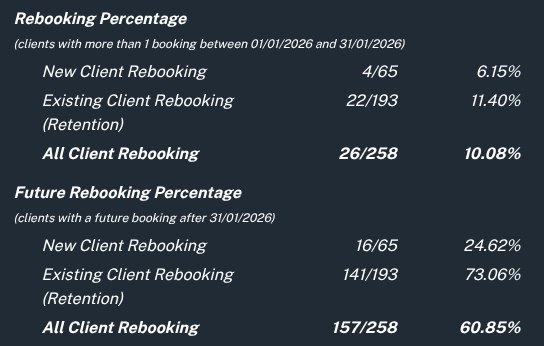
Example above:
In January, there were 258 unique clients (65 new and 193 existing clients)
Out of 65 new clients in January, 4 of them rebooked and had another appointments within the same month, 16 of them rebooked and will have appointments after January.
Out of 193 existing clients in January, 22 of them rebooked and had appointments within the same month, 141 of them rebooked for appointments after January.
Further Example : Product Sales
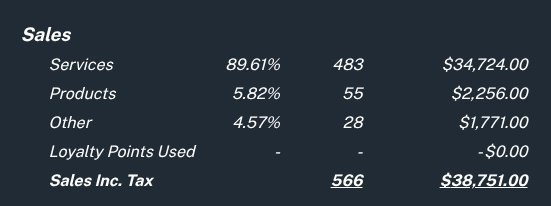
Example above:
The calculation for working our product sales is as follows:
Products sales percentage = Total Value of Products * 100 / Total Sales Inc. Tax
2256 * 100 / 38751 = 5.82%