
Sometimes you may want to discount just one item. Other times you may want to discount ALL items in a sale.
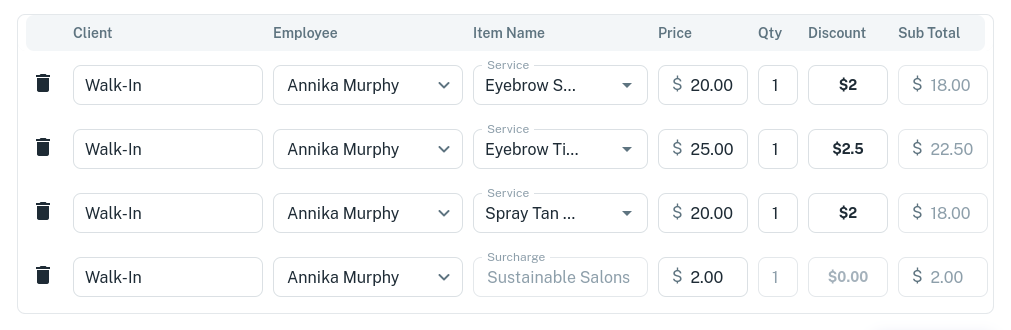
In this example, I am at the POS screen, with a range of items as shown in the image below:
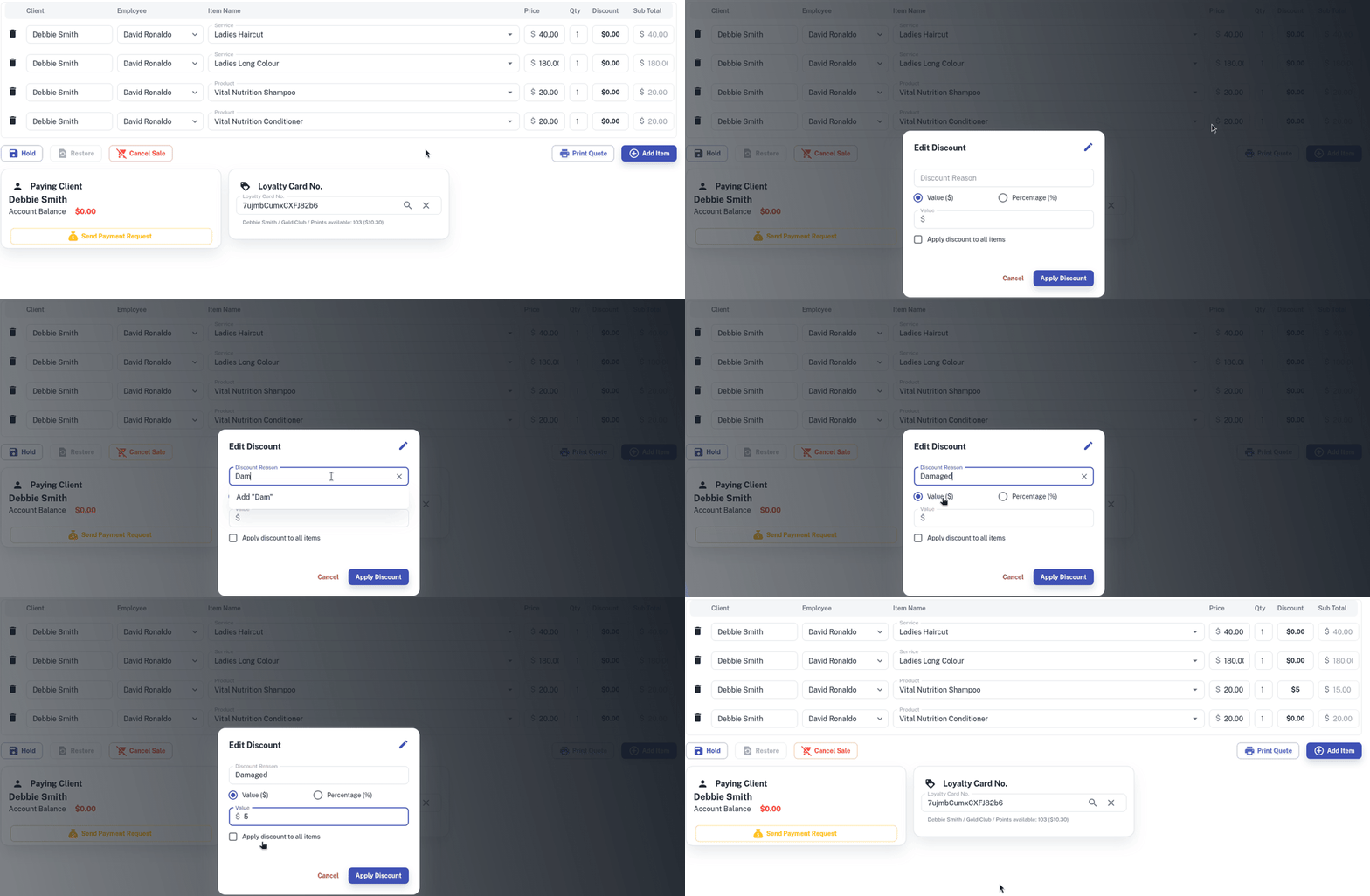
To Add a Discount to One Item
- Click in the relevant Service or Product’s Discount box
- Optional: Enter a Discount Reason or select an existing reason
- Choose either $ or % for the type of discount
- Enter the value of the discount
- Click on Apply Discount
It will remember previous discounts you have done in the Discount Reason bar.
To Add a Discount to ALL Items
- Click in any of Service or Product’s Discount box
- Optional: Enter a Discount Reason or select an existing reason
- Choose either $ or % for the type of discount
- Enter the value of the discount
- Select the checkbox called Apply discount to all items
- Click on Apply Discount
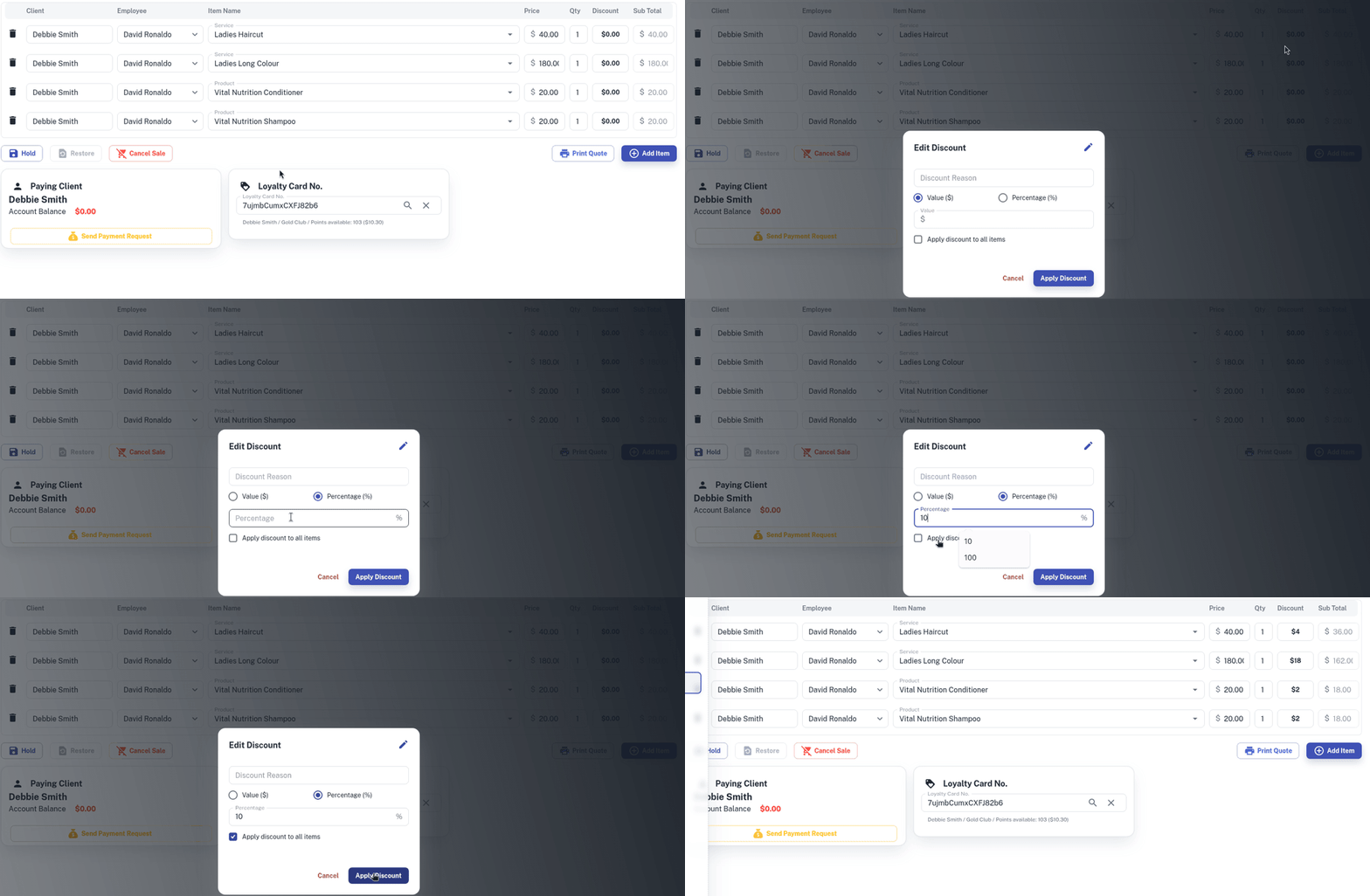
It’s that simple, all items will be discounted now.