At times, you may choose to add new Services to your business or to edit existing Services to freshen the look of the business.
How to Add a New Service
- Select the Service menu
- Click on the Add New Service tab
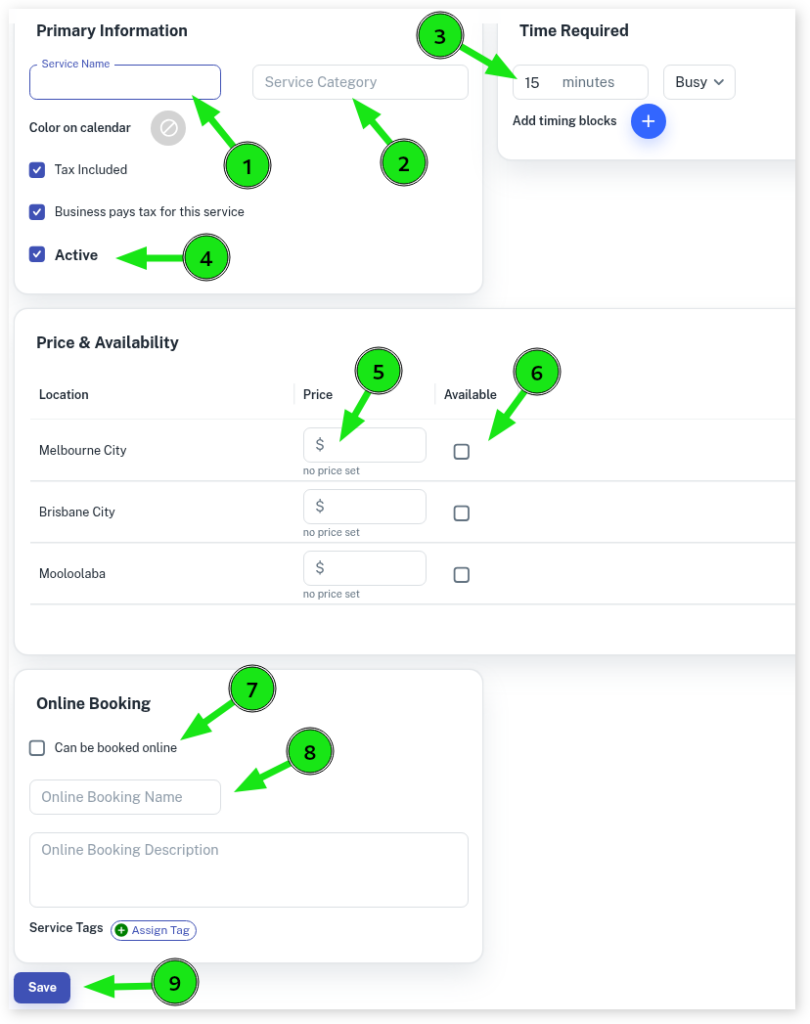
- Fill each relevant input
- Press the Save button to create the Service
Notes on What Each Input Means
- Service Name : the name you what to call your Service
- Category : the name you want to call your Service Category that the Service will be listed under
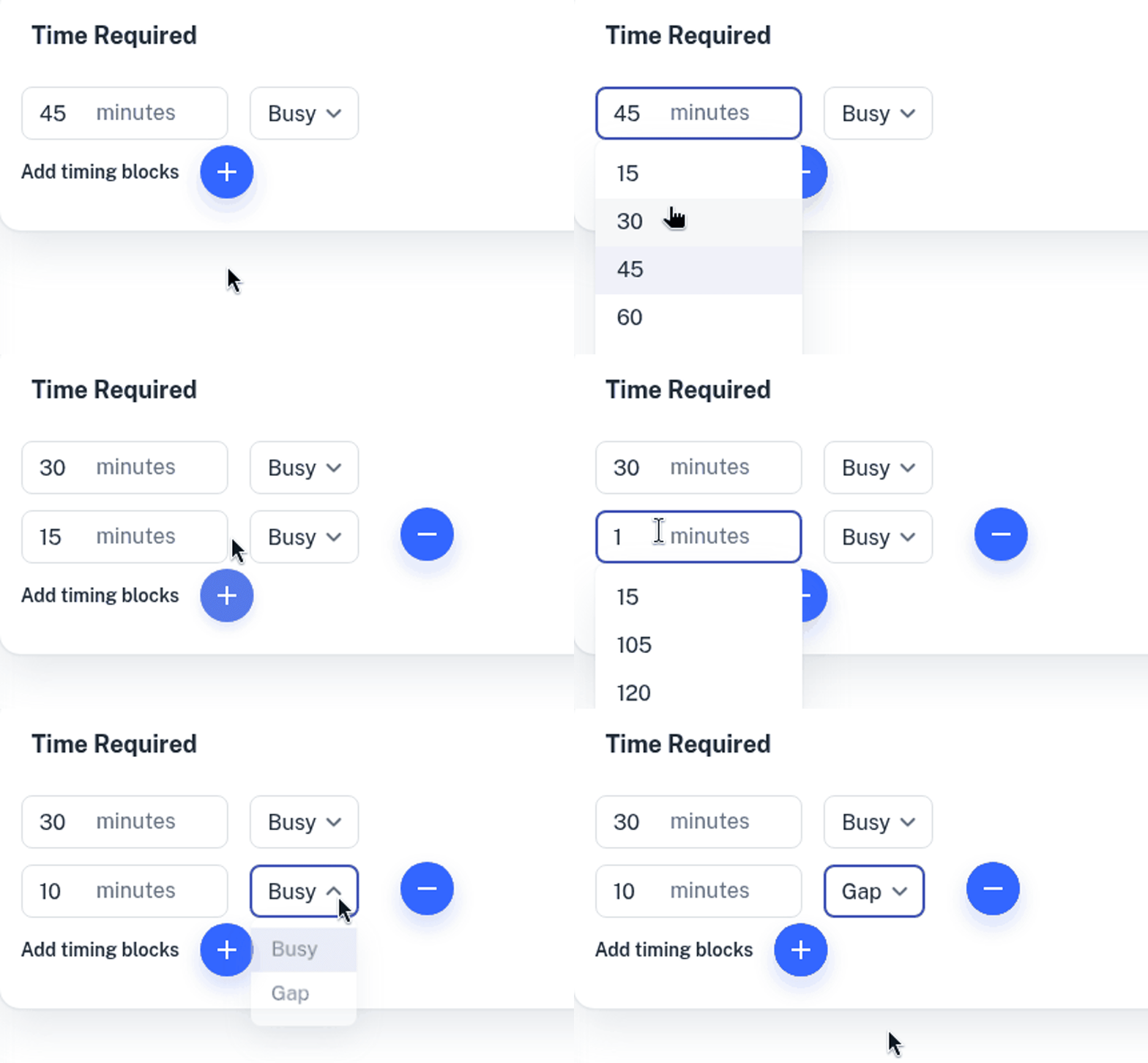
- Time Required : how much “Busy” or “Gap” time blocks needs to be allocated to the Service
- Active : an option if you want the Service to be active in Client Diary or not active (deleted)
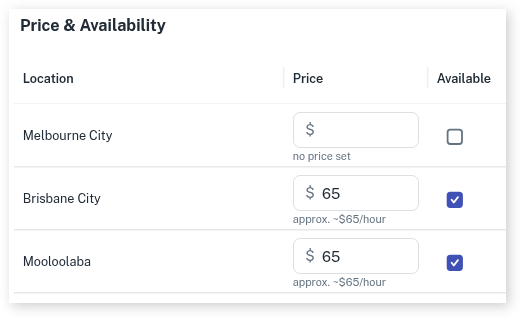
- Price : the price you want to set for the Service at that business location
- Availability : if you want to make that Service available at that business location
For example, in the screenshot below you can see Brisbane City is set at $65 and Mooloolaba is set at $65 and both are available at those locations. However, no price has been set for Melbourne City and it is unavailable.
- Can Be Booked Online : an option which allows or not allows the Service to be booked online by clients
- Online Booking Name : the name you want the Service to be called when clients book online
How to Edit an Existing Service
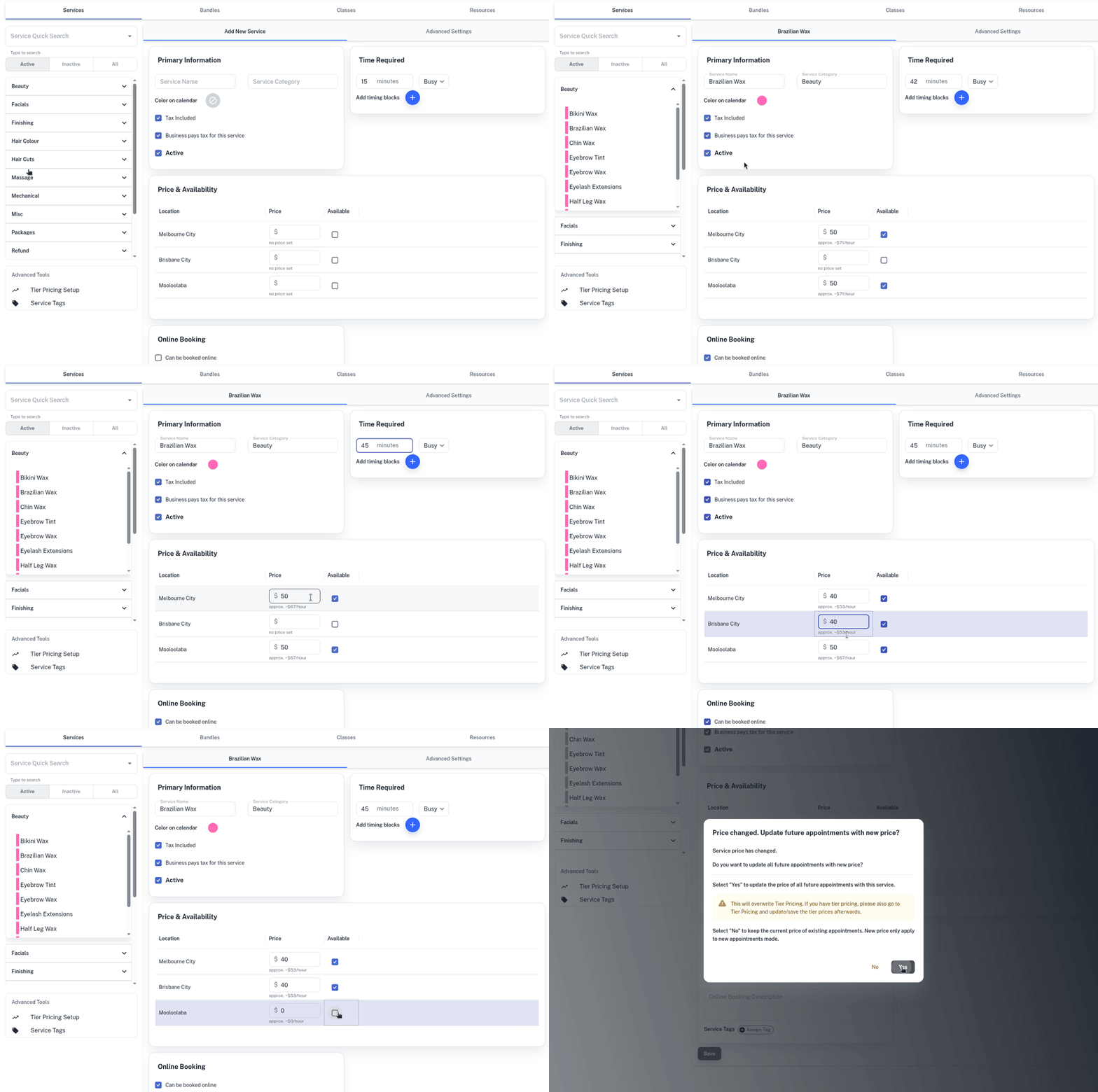
- Select the Service menu
- Search the Service you want to edit
- Enter any changes you would like to make
- Press Save to apply to the Service
When editing a Service, Client Diary helpfully shows the earnings per hour under the price
How to Add Extra Service Time (Including Gaps)
- Select the Service menu
- Search the Service you wish to edit / add extra service time to
- At Time Required enter the time required to do the Service
- If you want more time blocks added to the Service click the ‘+’ button
- Enter how many minutes you want this time to be
- Choose what type of time block you want it to be (a Busy period or a Gap)
- Press Save to apply changes.