What Is Stock Usage And What it is Used For
Stock usage is products you use in your business. Client Diary automatically checks out retail stock but usage stock must be done via the stock usage tool.
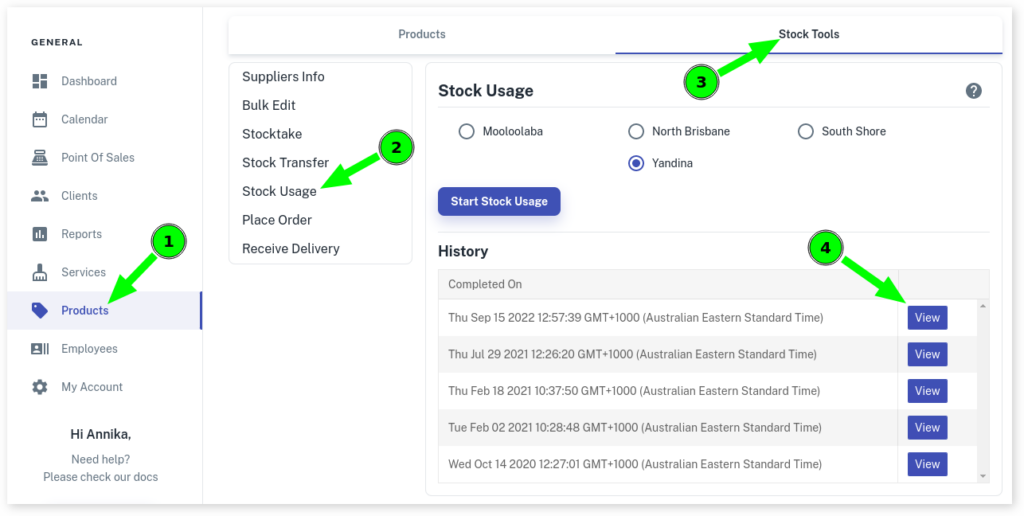
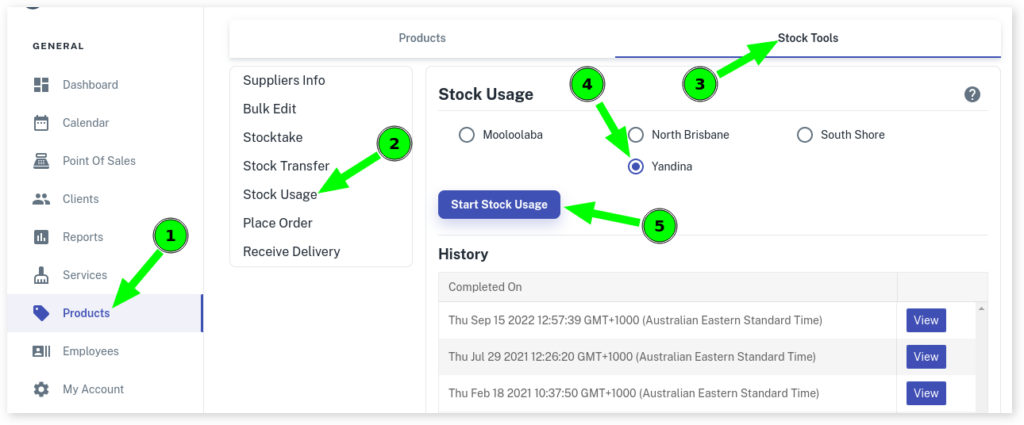
To find The stock usage tool:
- Select the Products menu
- Click Stock Tools
- Press the Stock Usage button
- Select which business location you are doing stock usage at
- Click on the Start Stock Usage button
How To Create A Stock Usage
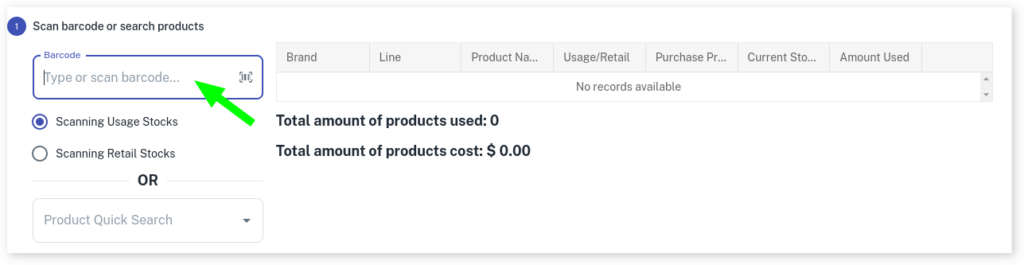
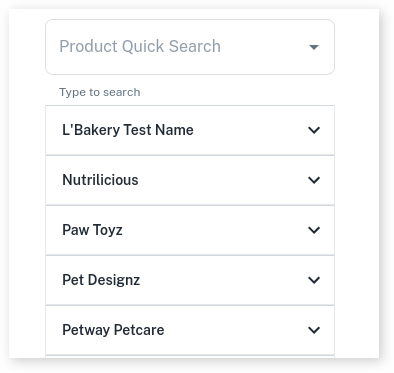
You can apply the products in the stock usage by scanning the product barcode or manually search your usage products in the usage product menu.
- Click in the box with Barcode to scan the products barcode that you are adding
- Select whether you are Scanning Usage Stock
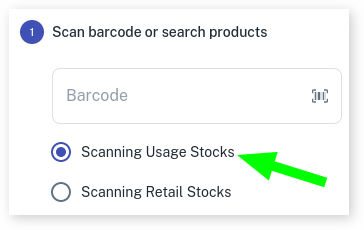
- Or Scanning Retail Stock
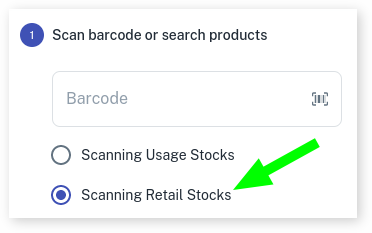
- Or if you are wanting to search the products manually in the box with Product Quick Search, type in the product name, brand or line to search what product you are looking for or click on the products in drop-down menu as shown in the screenshot below
- Click on Finish to finalise the stock usage.
Note: Your current stock level for these products will decrease by how much you have entered after hitting Finish on the stock usage tool.
To View Past Stock Usage history
- Select the Products menu
- Click on Stock Tools
- Press the Stock Usage option
- Under the Start Stock Usage you’ll see the History heading. It will show previous Stock Usage that have been placed.
- Click on the View button to view previous order