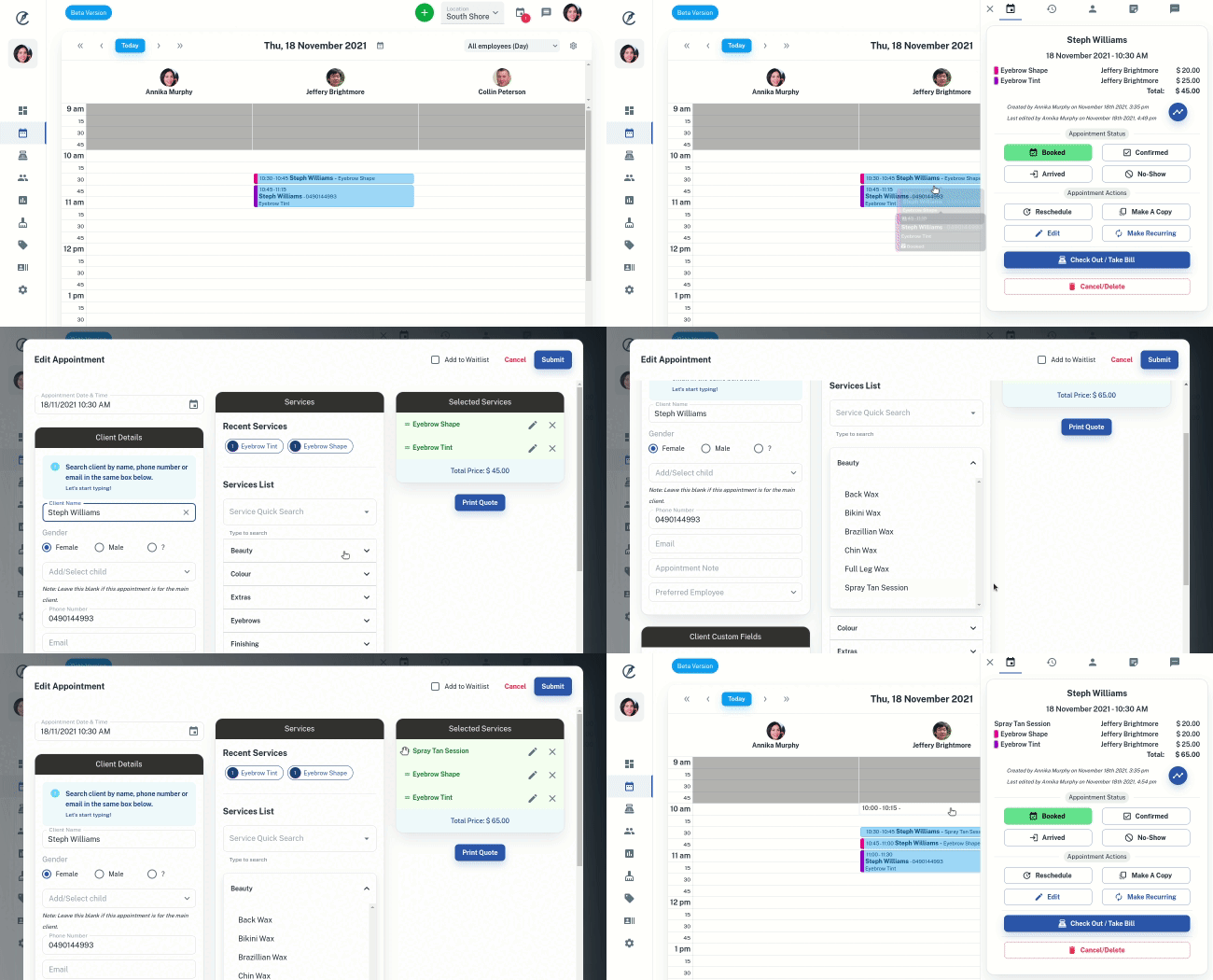
- Open Calendar to the appropriate date
- Select the Appointment in the calendar. This opens a window to the side
- Press the Edit button. This will open the edit screen
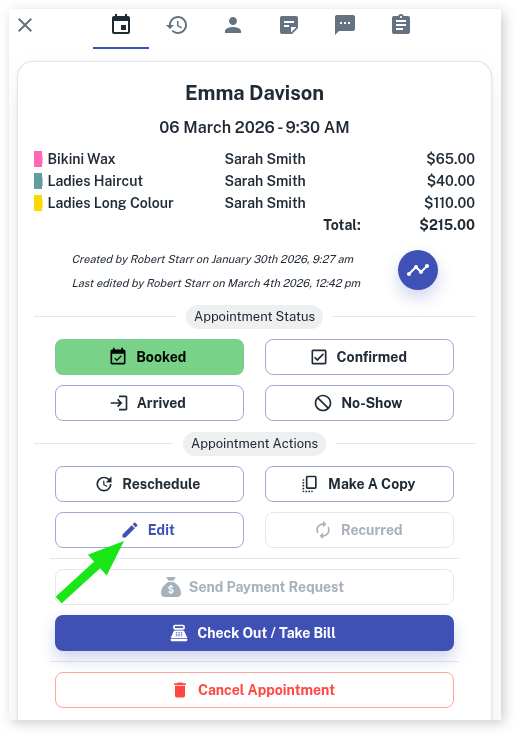
What Can be Edited
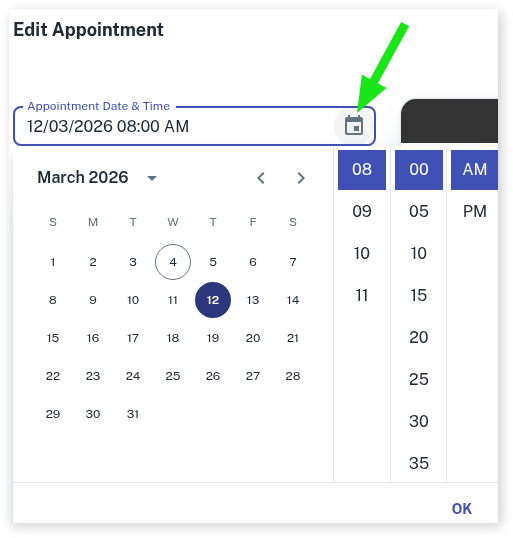
- The appointment’s date and time can be changed by clicking on the Calendar icon
- The Client Details can be edited or added to
- You can add an Appointment Note. Click here for more information on How To Add Appointment Notes
- You can add more Services to the appointment
- The order of the Services can also be moved by clicking and dragging the selected Service listed under Selected Services
- To delete out Services in the appointment click on the X icon next to the Service listed under Selected Services
- Once you have edited the appointment, press the Submit button in the top right.