
If you haven’t already, we recommend you read the Overview to Online Booking first by clicking this link.
As an example of the new online booking site, you may also like to take a look at our Client Diary demo page by clicking on the following and then selecting the link Client Diary demo page.
Once you understand the concepts, continue here for step-by-step set up instructions.
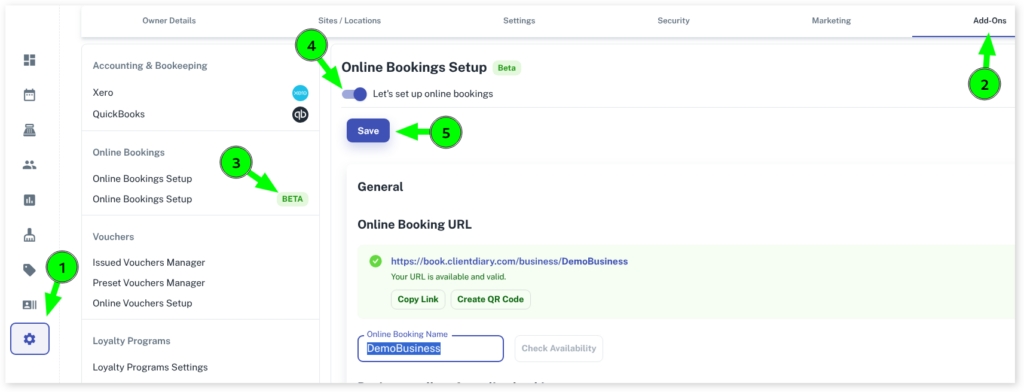
- Head to My Account
- Select Add Ons
- Press on Online Bookings Setup Beta
- Turn on the Let’s setup online bookings switch
- Press the Save button
Your online booking is now turned on, but there are a few more steps.
Adding Your Logo or Photos
You may like to add your logo or photos to showcase your business online. Client Diary enables you to add up to 5 photos:
- Click on Update Photos (Max 5)

For best results, we recommend your image be in landscape mode
(Optional) If you have multiple sites / locations, you can also add in separate photos to showcase each one. To do this:
- Head to My Account
- Select Sites / Locations
- Click on the Edit (pencil icon)
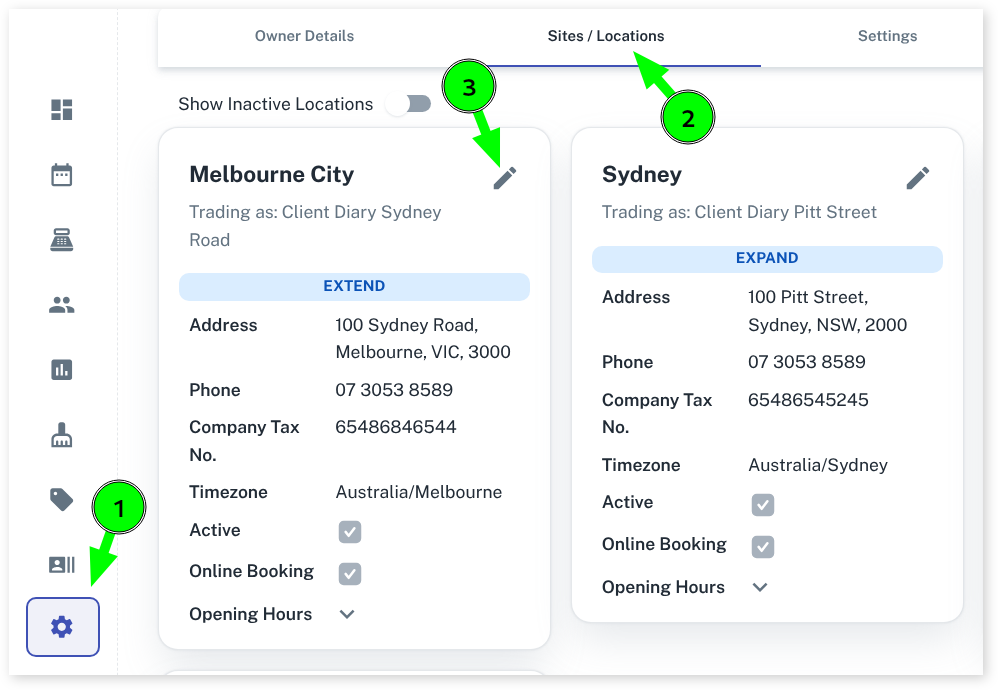
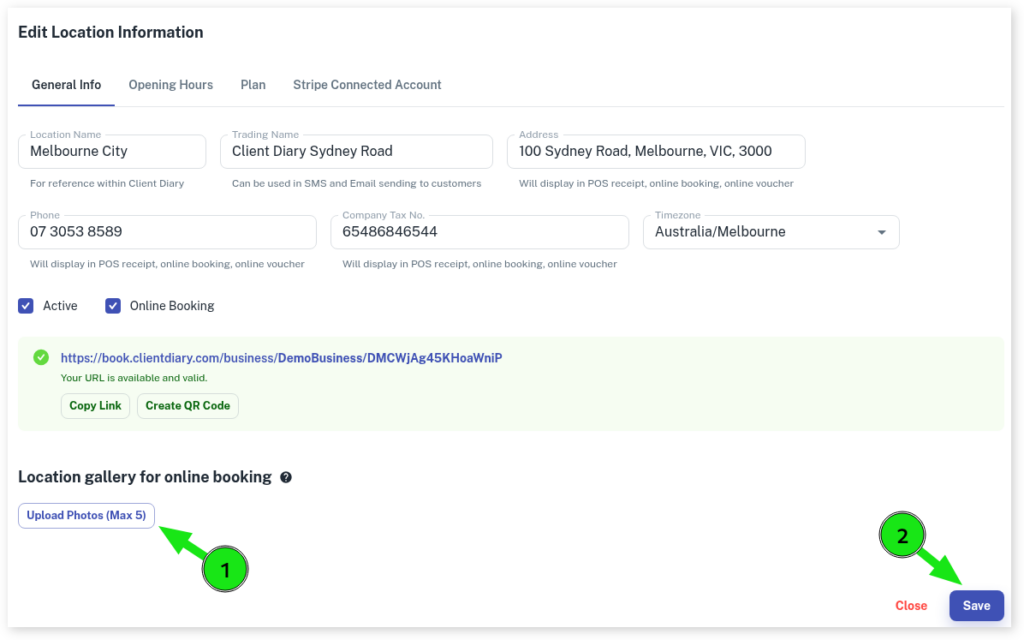
- Under General Info you will see the option Location gallery for online booking
- Click on Upload Photos (Max 5) to add photos to showcase your specific location. For best results, we recommend your image size be in landscape mode
- Ensure you click on Save
About Your Business
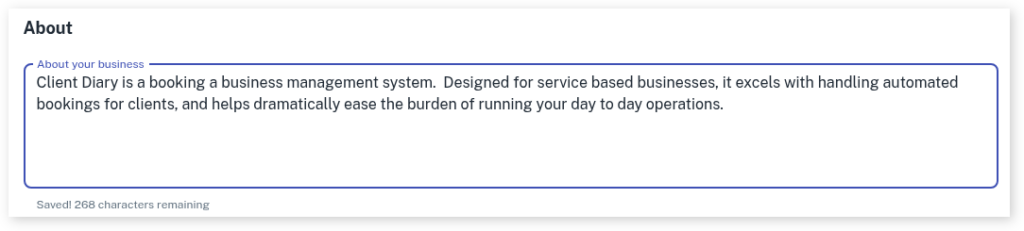
In the Online Bookings Setup, just under the heading Business gallery for online booking where you have added photos in, you will see a section called About. Please feel free to add any information you like to this section about your business.
Steps to Set up the Individual Sections
TIMING
How to Adjust Your Beta Online Booking Time Slots
How Long Beta Online Bookings Must Be Made Prior To The Appointment
Limit How Far In Advance A Beta Online Booking Can Be Made
PRE-PAYMENT
Turning on Deposits / Pre Payments for Online Bookings Beta
OTHER
Creating an Announcement for Your Online Booking Beta
How to Add Custom Terms and Conditions to Your Online Booking Beta
How to Enable Auto Approved Online Bookings Beta
How to Toggle Email Notifications of Beta Online Booking
How to Reduce Gaps Between Online Bookings Beta
Enable Online Booking Service Prices to Show
All Services Booked are Applied to One Employee
ONLINE PORTAL
Other System Functionalities that Need to be Addressed
The following documents will show you how to set up other options that affect your online booking set up. Please refer to each individual link for more information.
Setting Which Employees can be Booked via Online Booking
Adding Employee Profile Photos