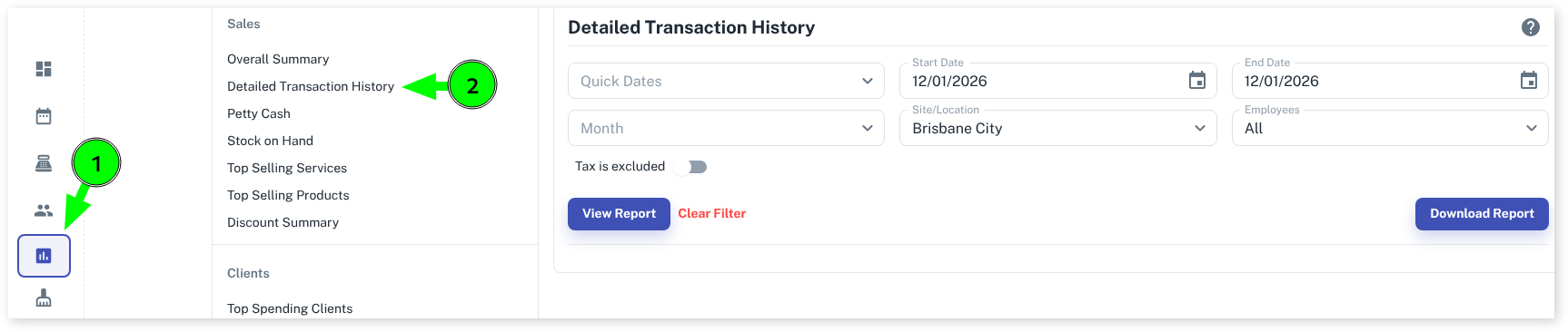
The detailed report is use for when you want to view what transaction your employees have done in your business for the day. To do this go to
- Reports In the left menu
- Click on Detailed Transaction History
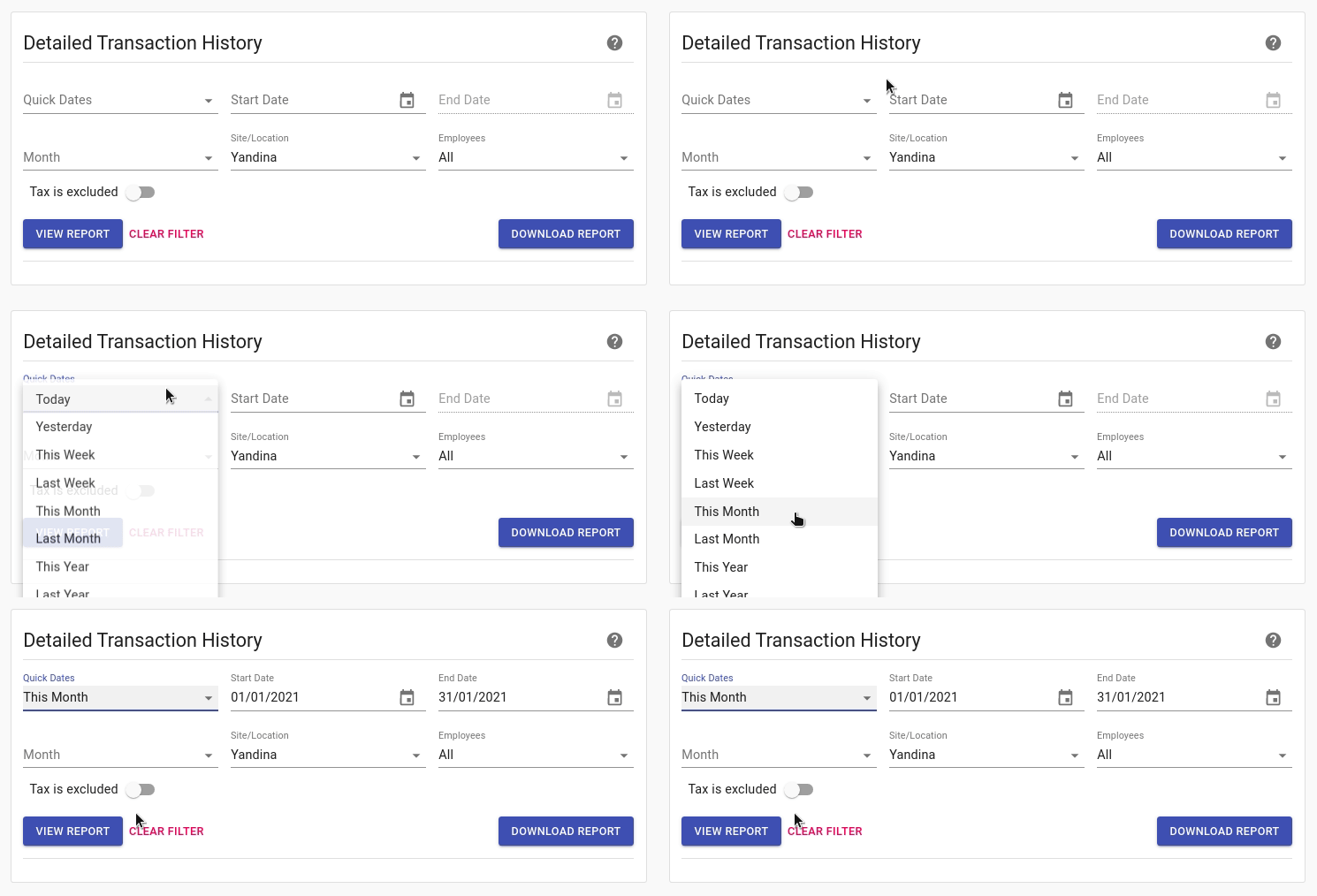
Side Note: Here you have couple of options on how to select which time period you want it to show in the reports.
Quick Dates- Is a quick option to choose dates in the report (see screenshot below for example).
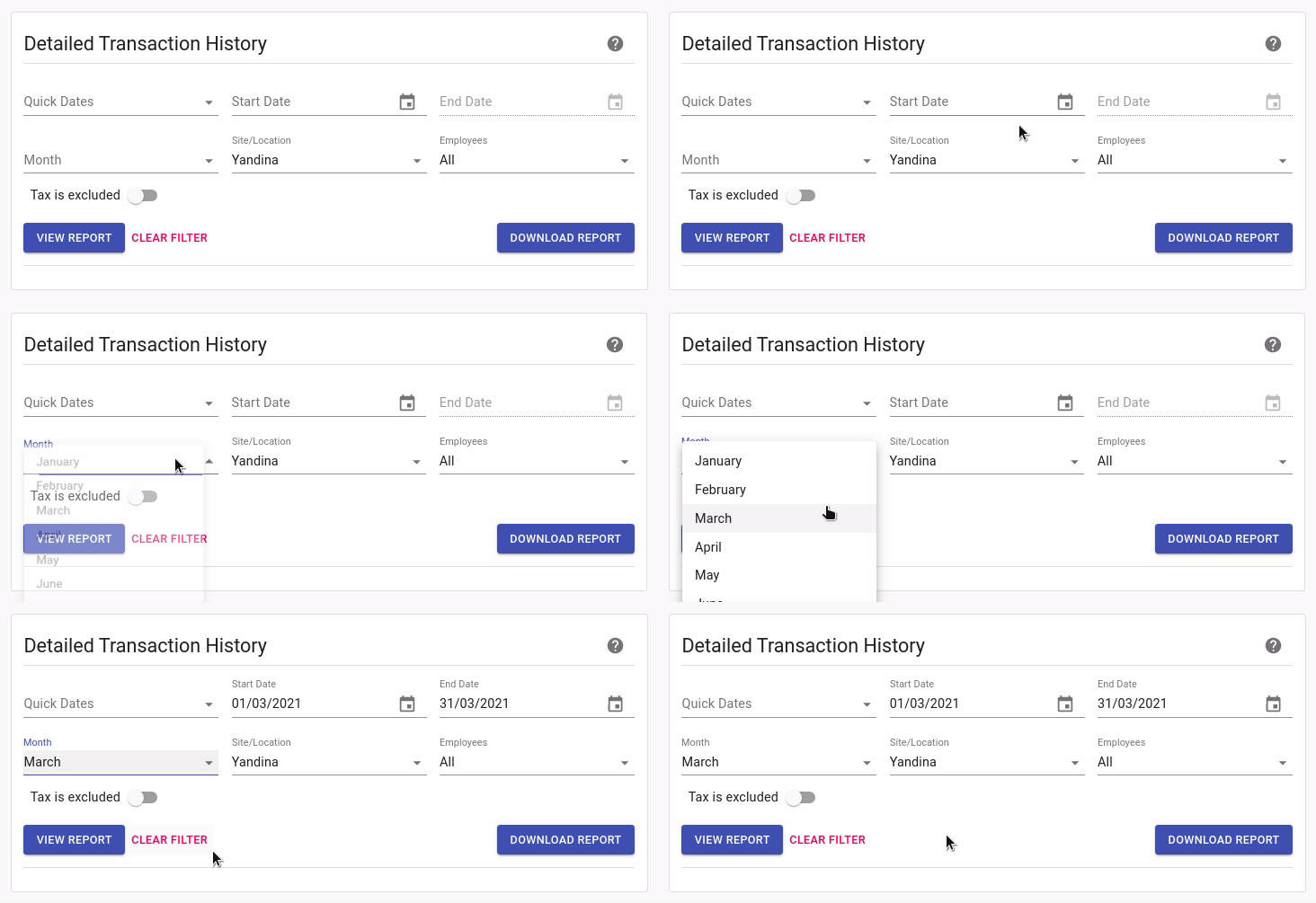
Month- Chooses which entire month of the current year you want to show in the report.
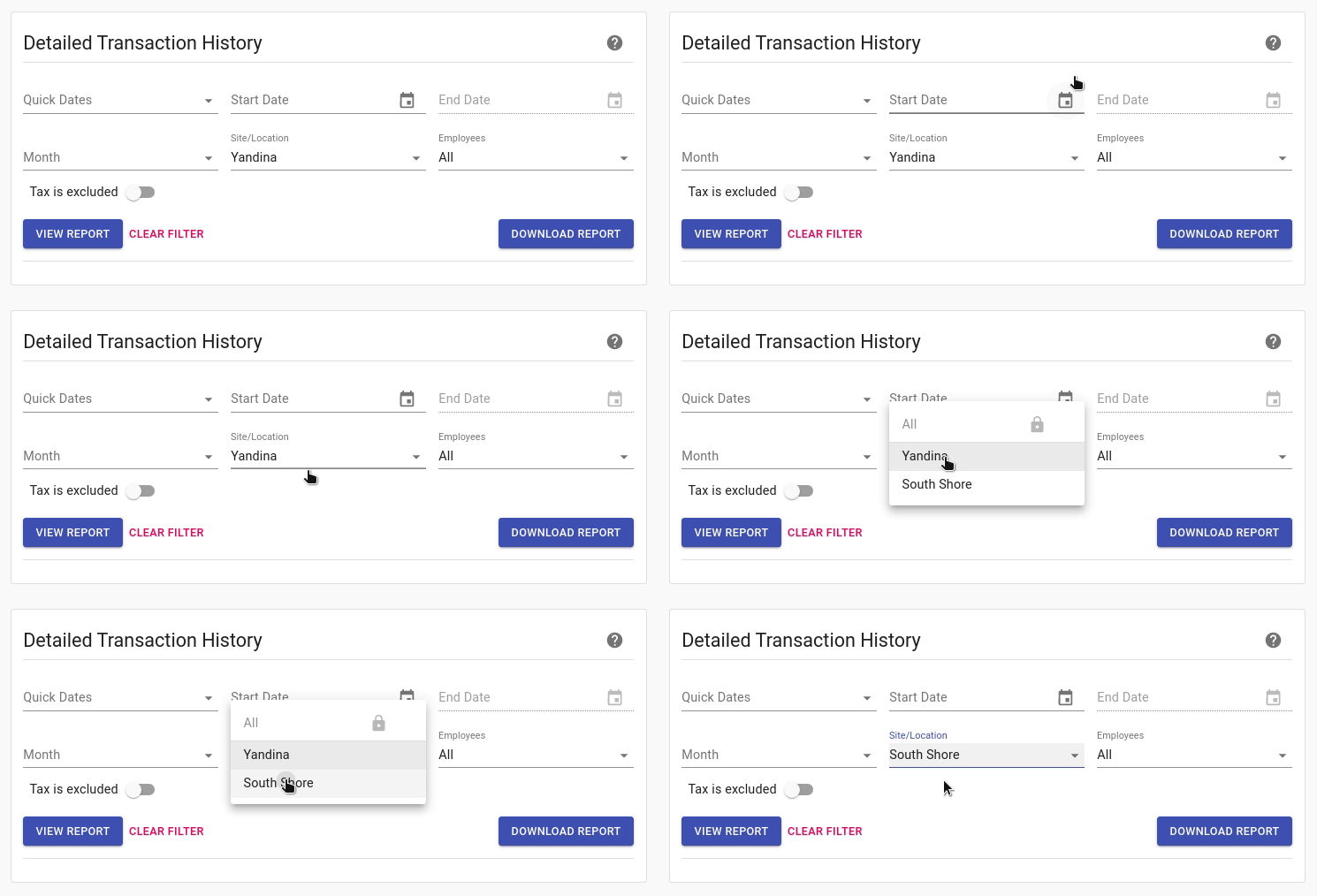
Site/Locations- If you have 2 or more business locations applied to your Client Diary, you can select which business location to only show in the report with the dates for that report applied.
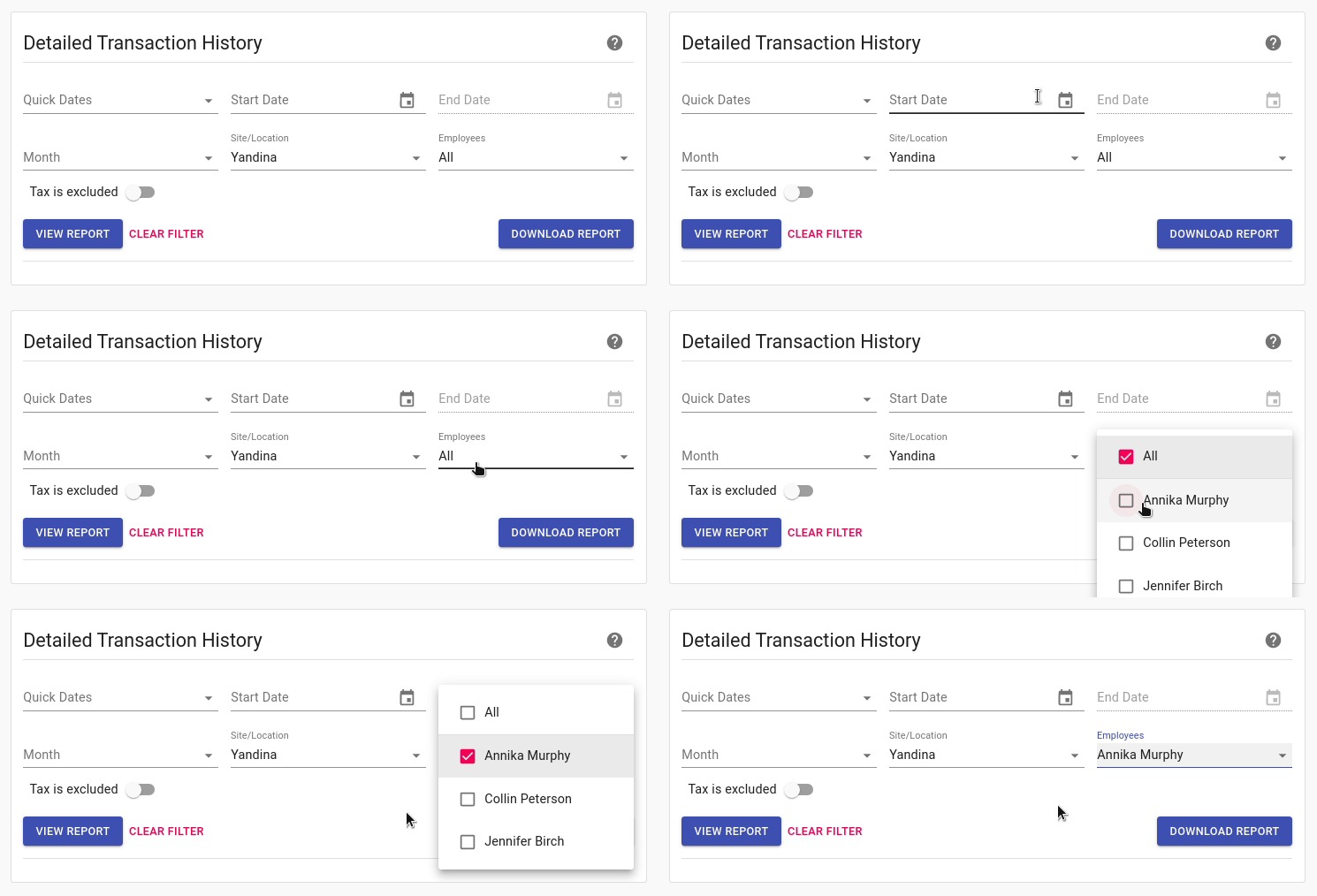
Employees- It will only show the figures in the report of the employee that has been selected.
Tax Is Excluded/Tax Is Included- When you want to apply the option of including/excluding tax in the reports. Click Here on how to do this in Client Diary.
Start Date/End Date- When you only want to select specific dates to show in report (as shown below).
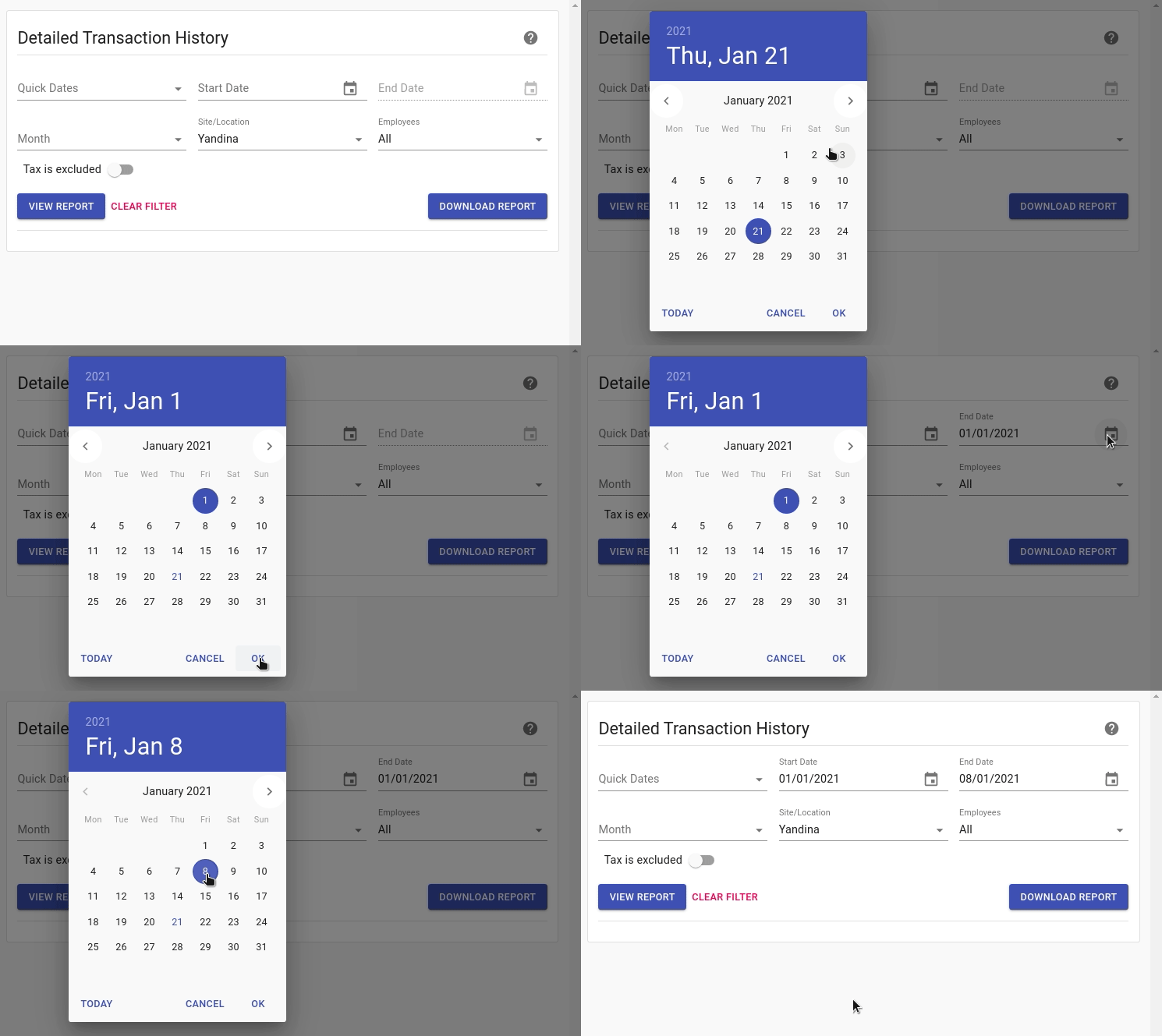
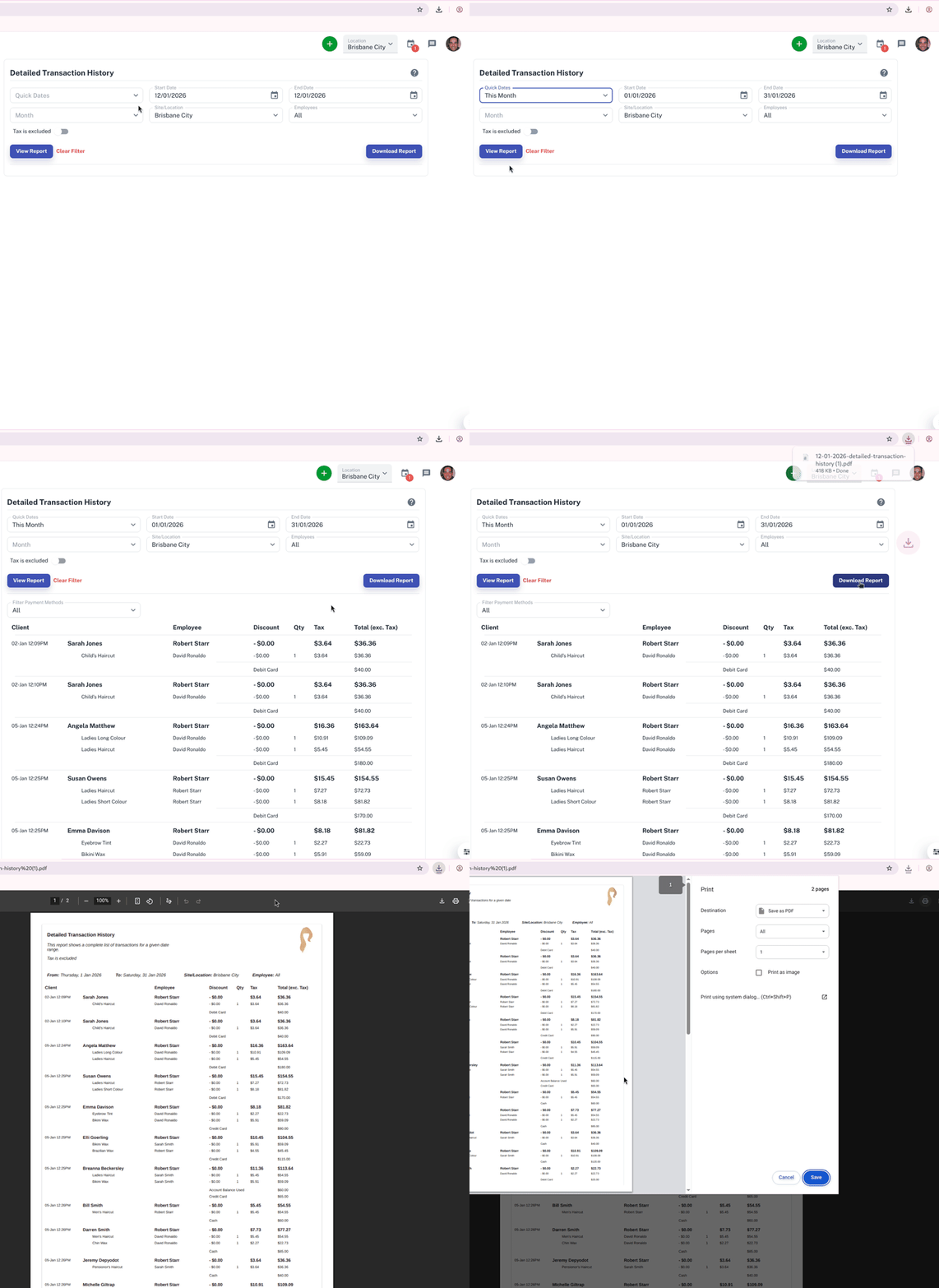
- Once you have selected the date you want to report on, click on the blue View Report button to show the report on the screen
How to Use the Filter Option
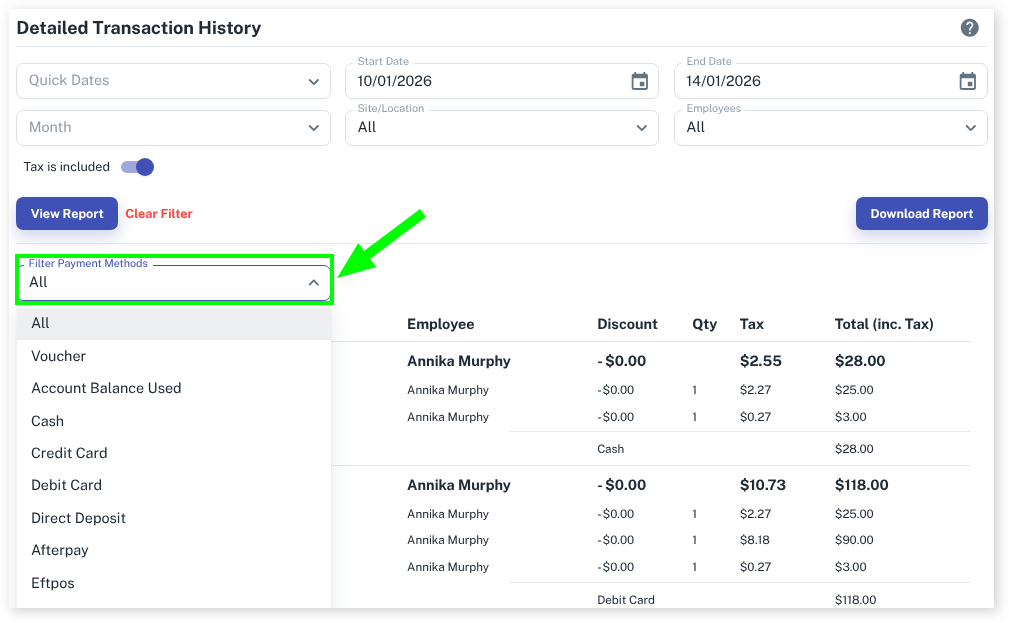
Now that you have clicked on View Report, you can use the Filter Payment Methods drop-down to further filter your transactions.
- If you want to print out the report you have to View Report and click on the blue Download Report button for it to create a PDF file of the report and then you can open the report, selecting the print option