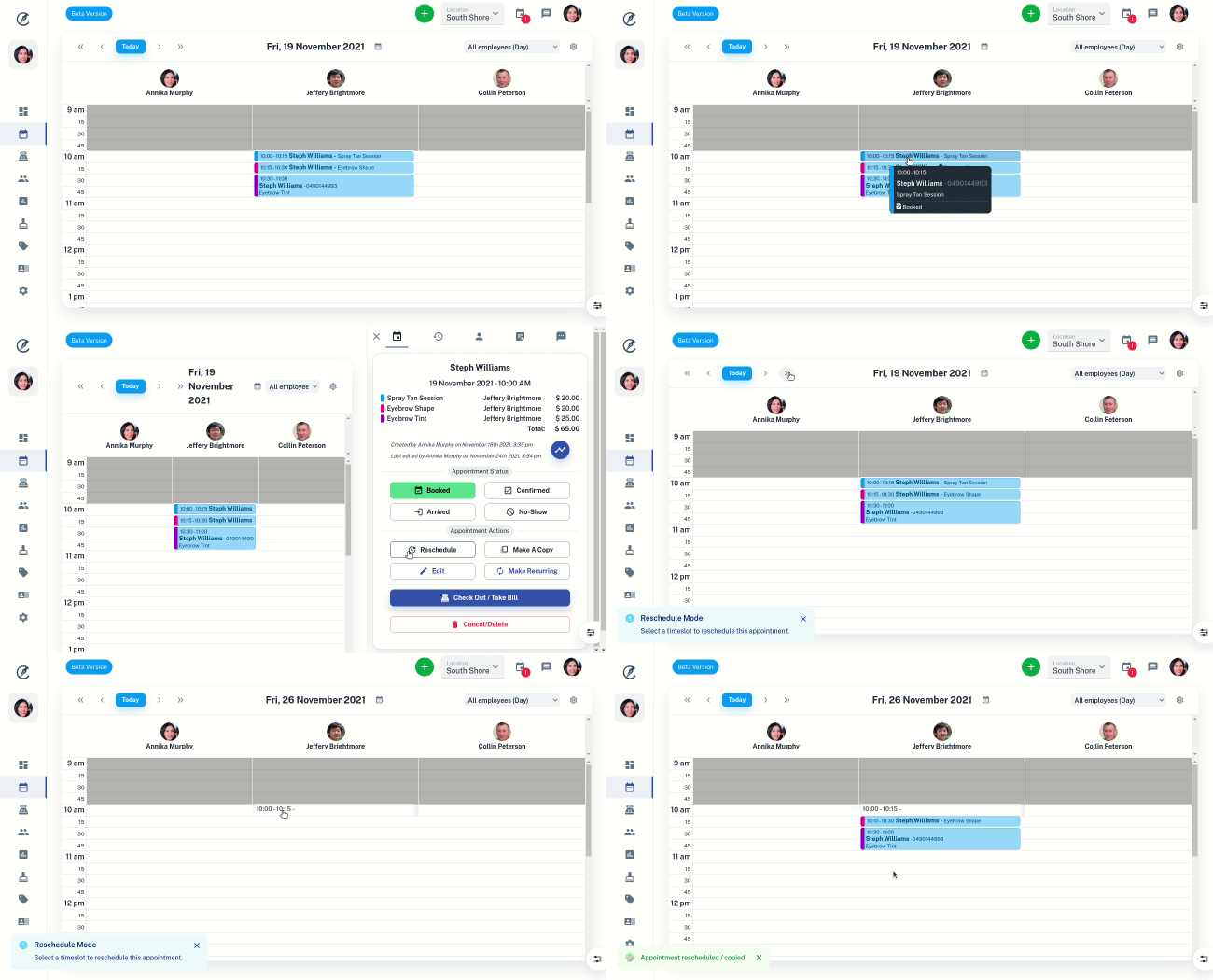
If a client calls and wants to re-schedule, you can easily move the appointment in Client Diary.
- Open Calendar to the appropriate date
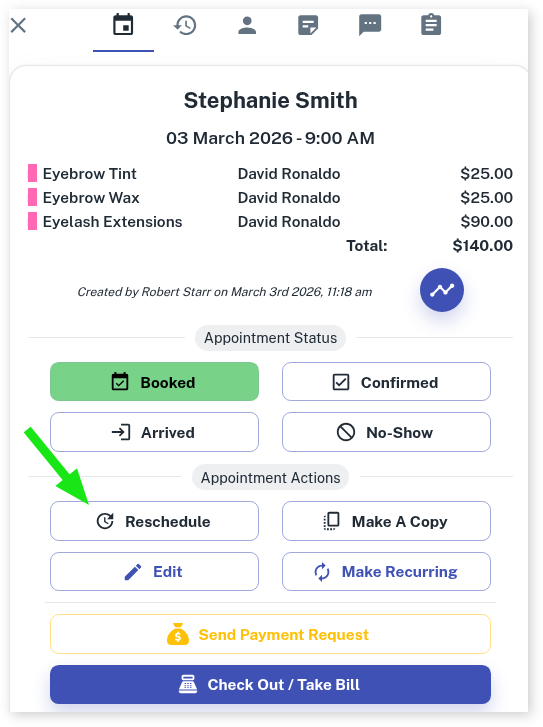
- Select the Appointment in the calendar. This makes the context slider appear
- Press the Reschedule button
- Move to the day you want using normal Calendar << < > >> buttons
- Select where you want the appointment to move to
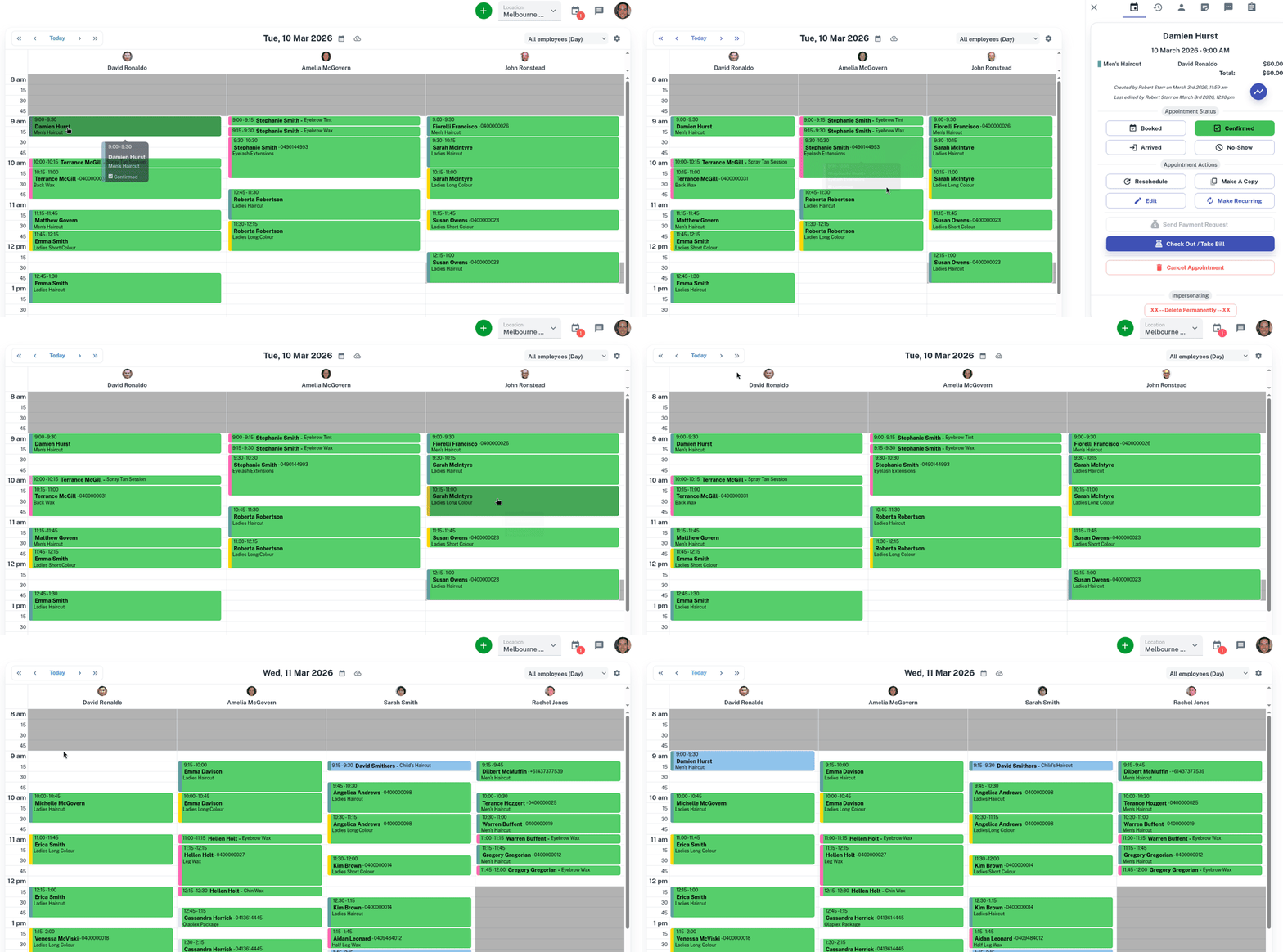
IMPORTANT: If a confirmed appointment is rescheduled, it reverts to being booked, is unconfirmed and another SMS Reminder will be sent.
To avoid another SMS going out to your client, you can manually confirm the appointment after rescheduling.
Example of Rescheduling a Confirmed Appointment
You can see from the example below how the confirmed appointment booked for Damien Hurst changes to being simply “booked” when rescheduling it.
Example of Rescheduling an Appointment a Day Ahead Or Back
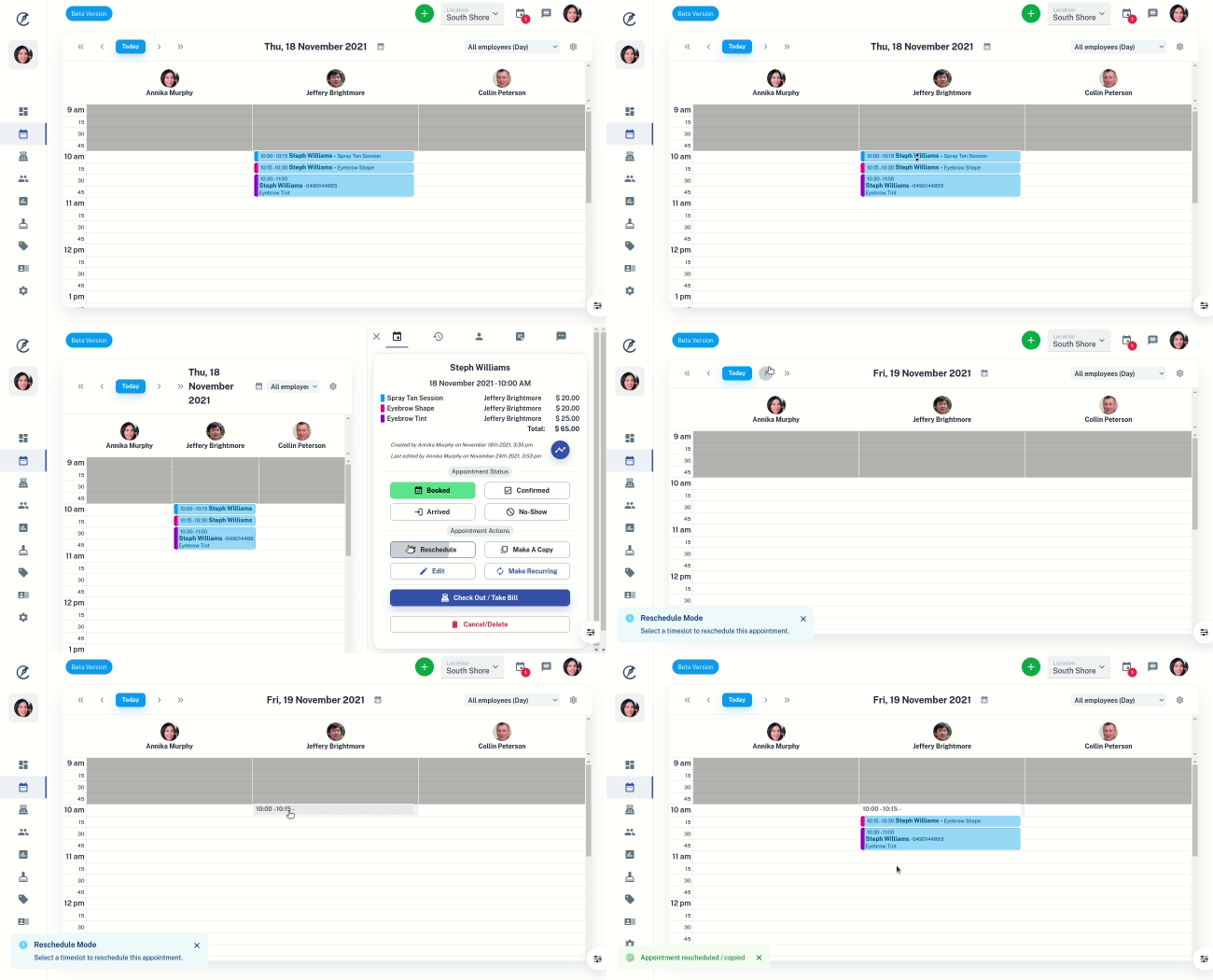
Example of Rescheduling an Appointment a Week Ahead Or Back