
Client Diary allows you to automatically contact a client a specific time before specific Services to deliver the exact message you need.
For example, imagine you own a beauty salon and you want your clients to not wear any moisturiser or makeup before a spray tan.
Client Diary can easily be set up to automatically send a message to them a few hours before their appointment ensuring they arrive without makeup on, saving you time waiting for them to get prepared.
To do this:
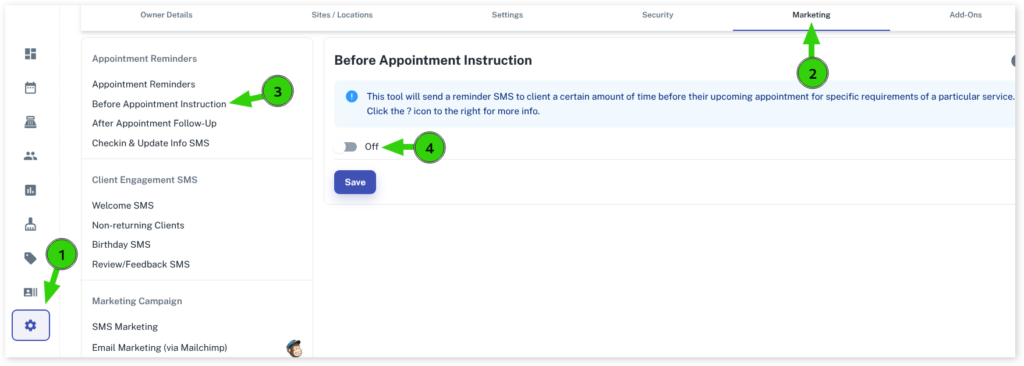
- Select the My Account menu
- Click on the Marketing Tab
- Choose Before Appointment Instruction
- Turn on the On/Off toggle
You are then presented with a list of all your Services.
These are the steps you must do for each Service you want a message sent before:
- Under Category Name click on the + symbol
- Find your Service
- Press the Edit button
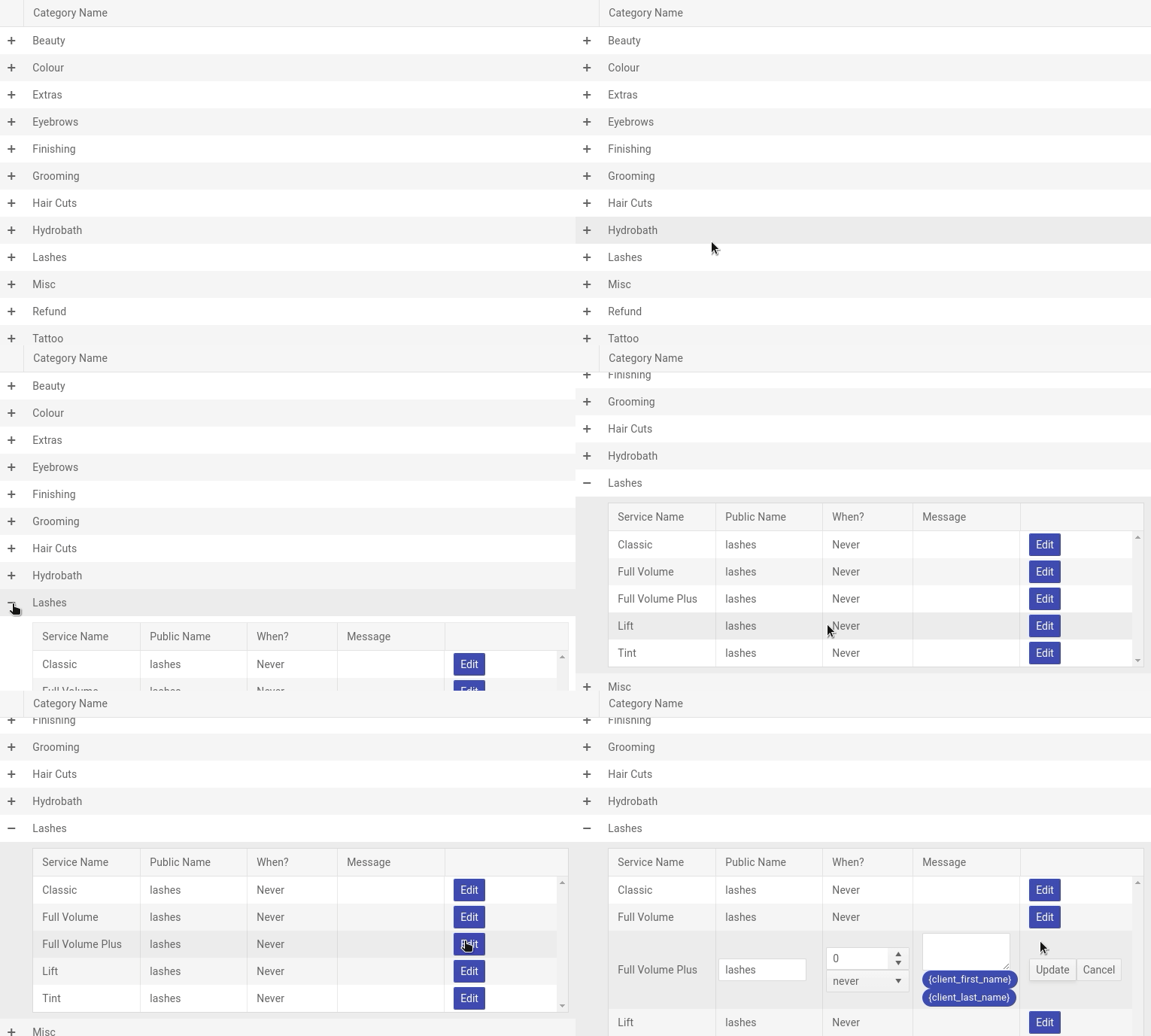
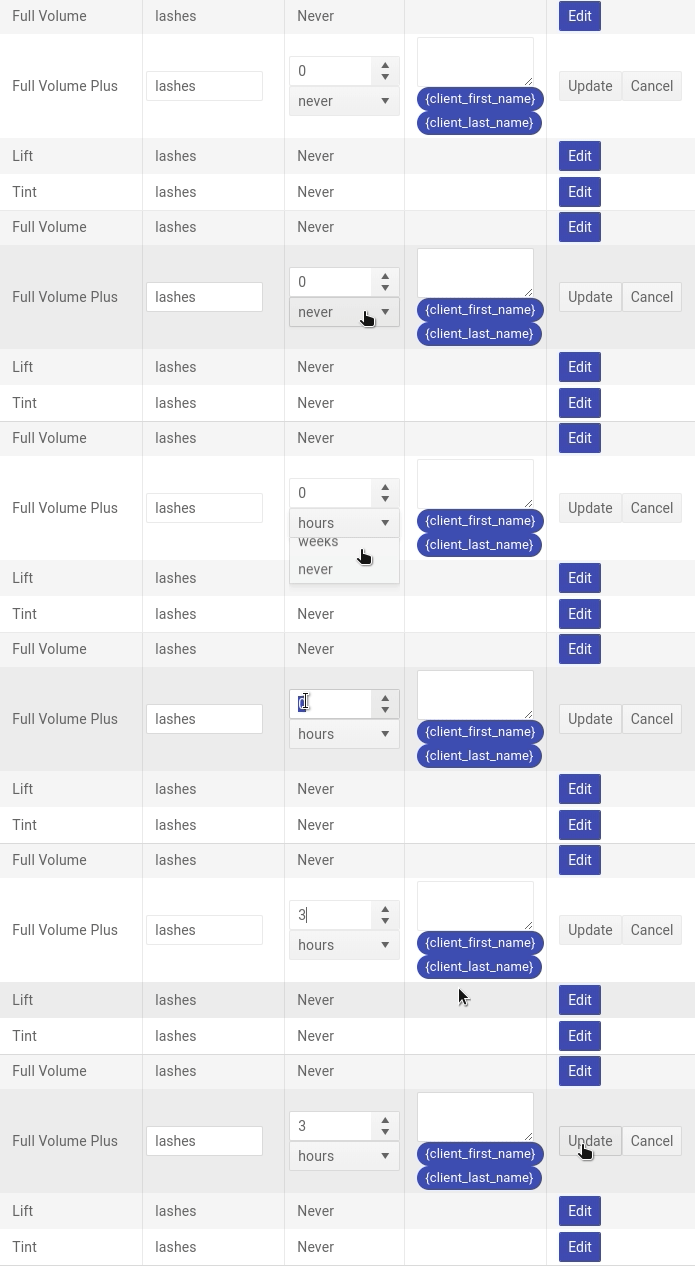
- Select a time unit. e.g, how far before the appointment you want the message (hours/days/weeks)
- Enter a number of that unit. In the example below we’ve chosen 3 hours.
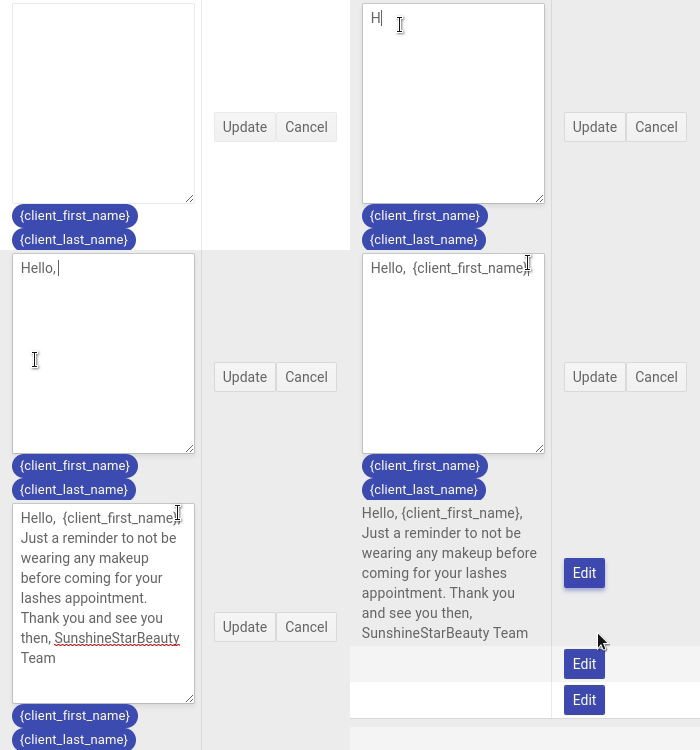
- Enter your pre-appointment message. Remember to choose the Client’s first name and ensure your business name is in the message also.
- Press the Update button
- Repeat the above steps for each Service you want a pre-service message to go out for.
IMPORTANT: When you are done you MUST press the Save button at the bottom. Without doing this, the messages will not turn on.
After this, your clients will automatically receive the exact communication you need them to have before their Services.
This saves you time on the phone and saves them turning up unprepared.
You can learn more about pre-appointment marketing by following this link.