
Here is an example of how to send an SMS to all clients in your database that have been in your business within a certain time frame. Other examples can be found here.
Head on Over to the Marketing Screen
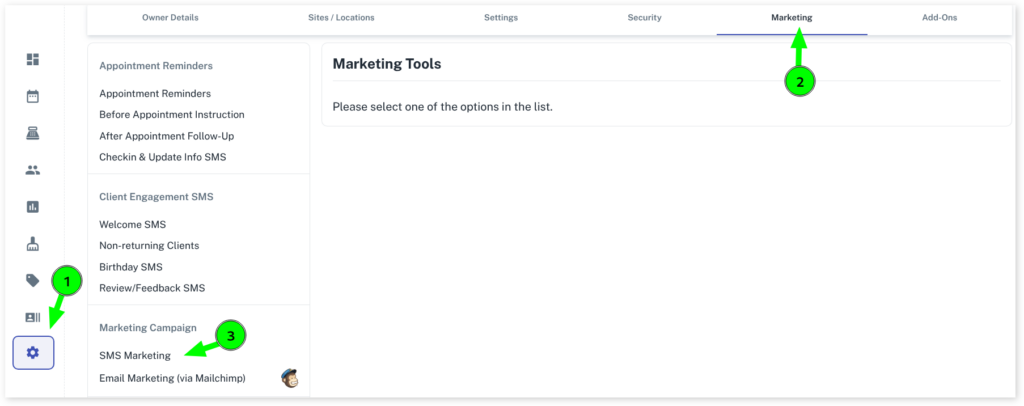
- Select My Account menu
- Press the Marketing tab
- Click on SMS Marketing
Select Your Target Audience
- Gender: All
- Has Future Appointments: Doesn’t Matter
- Last Purchase Was: Between X weeks ago and X weeks ago
- New of Existing Clients: New + Existing
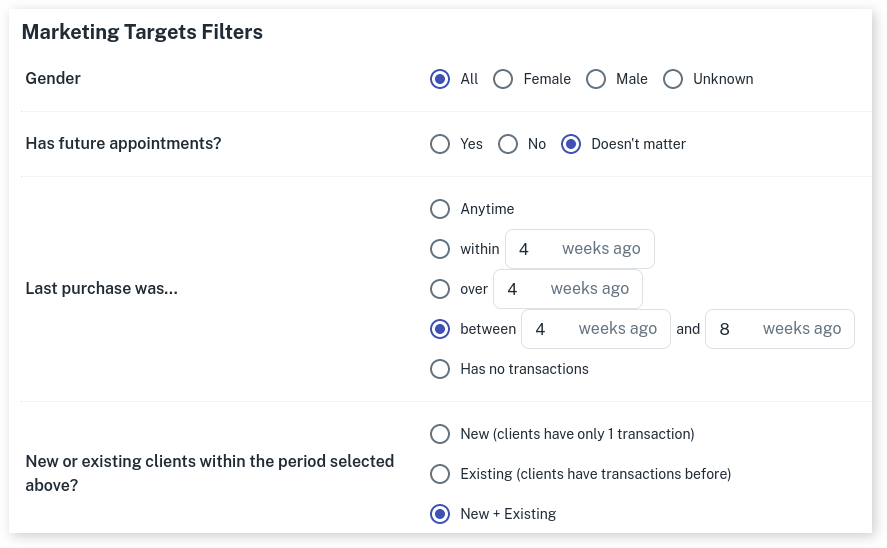
Note: You need to determine how recently you want to go back. The above example is if I wanted to SMS all clients who had been within the last 4 to 8 weeks.
Retrieve the Client List
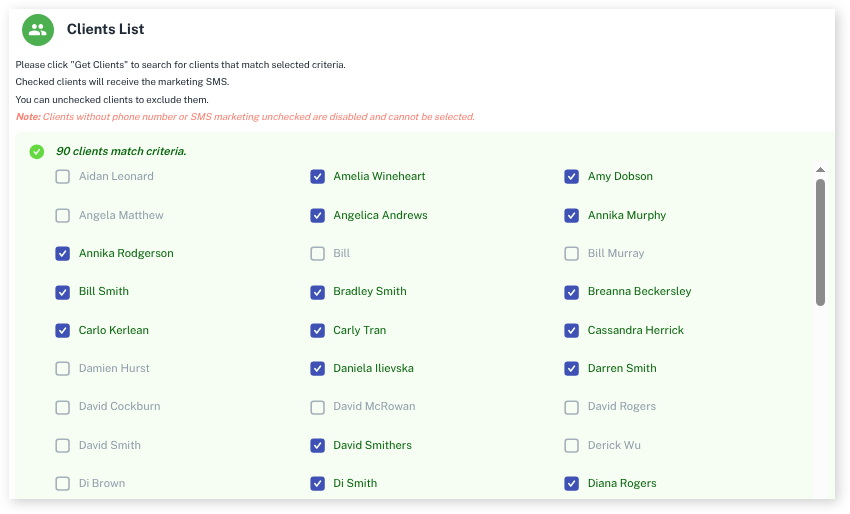
- Press the Get Clients button

- Manually de-select any clients in the list that you might not want to receive the message by unticking their names. This step is not required. Only do so if you have specific people you don’t want the message to be sent to.
Enter Your Message
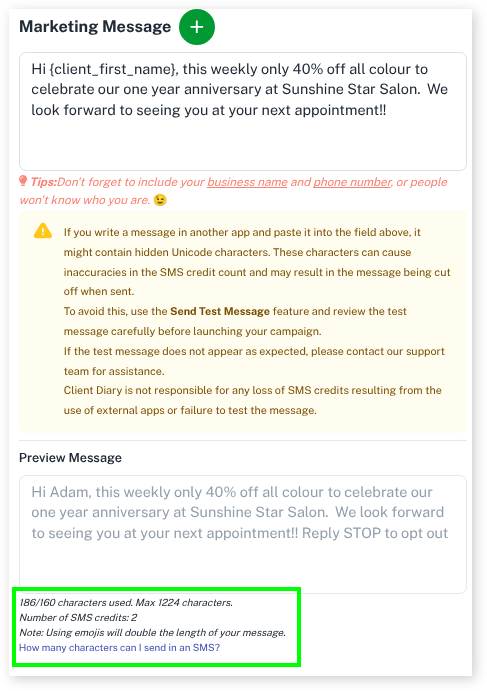
- Personalise the message. You can enter a personalised first name for example by pressing the Green + button next to the Marketing Message title then selecting the data to insert. The image below shows this.
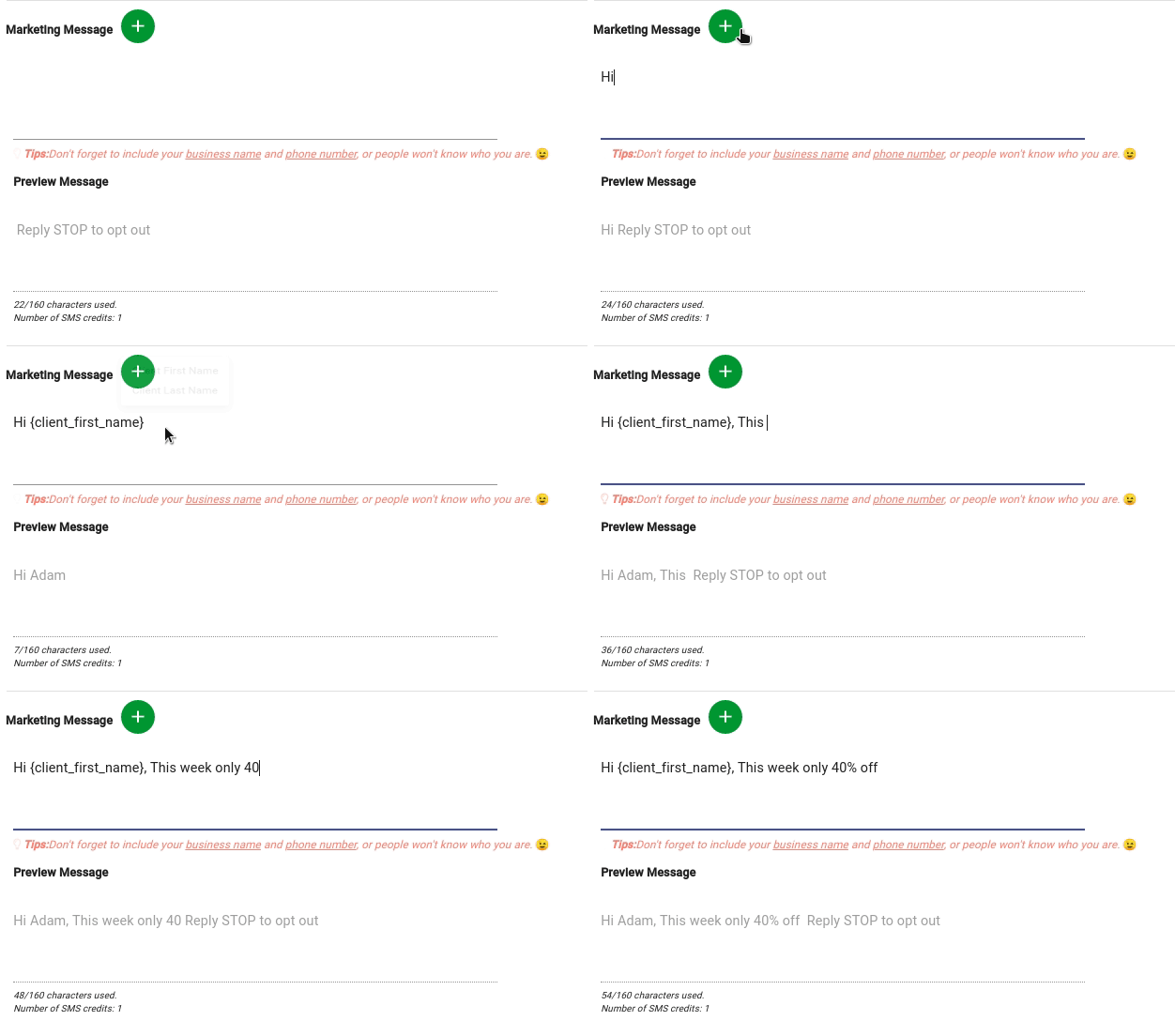
- Enter your message. Note the length of the message in the preview area titled Number of SMS. A single length message uses 1 credit. A double length message uses 2 credits. The goal is usually to try your best to keep the text 1 message in length. The below image shows when it’s 2 messages in length.
Preview the Message then Send Your Marketing!
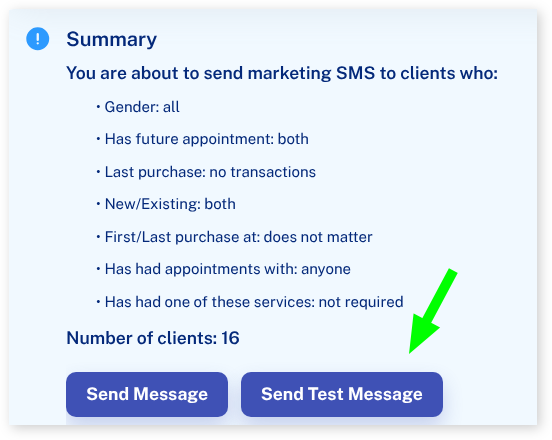
If you wish, you can test the message before sending it to all your clients. This is good practice to ensure your personalised text comes through as expected and it allows you to see it on the client’s screen.
- Press the Send Test Message button
- Enter your own mobile number and press the Send button
Sending the Message
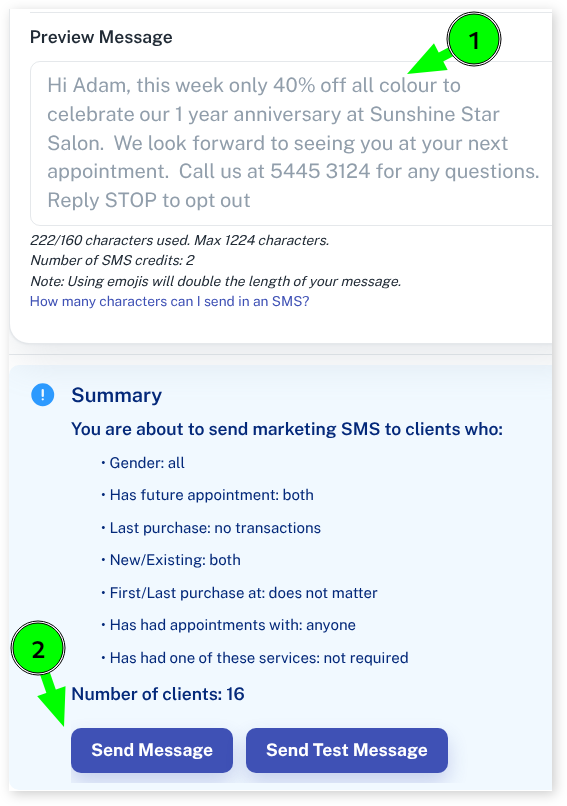
When you’re happy with the message and the preview looks good, simply press the Send Message button.
You will now see a pop up showing Checking SMS Credits & Sending SMS – Step 1
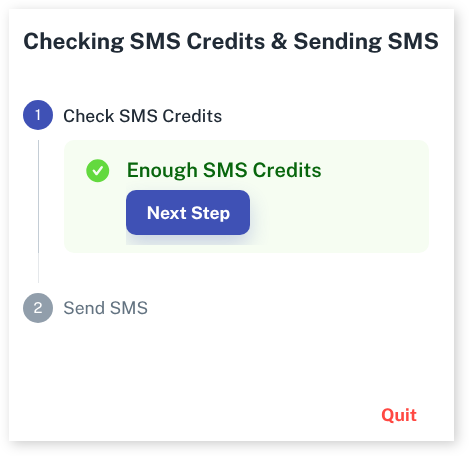
The system will check if you have enough SMS credits to send at this point. If there’s enough the messages will send. If you need more credits to reach your audience, it will let you know and give you the opportunity to top up your credits at this point.
Clicking on Next Step will take you to Step 2 showing how many SMS Credits Total you will use to send to how many clients.
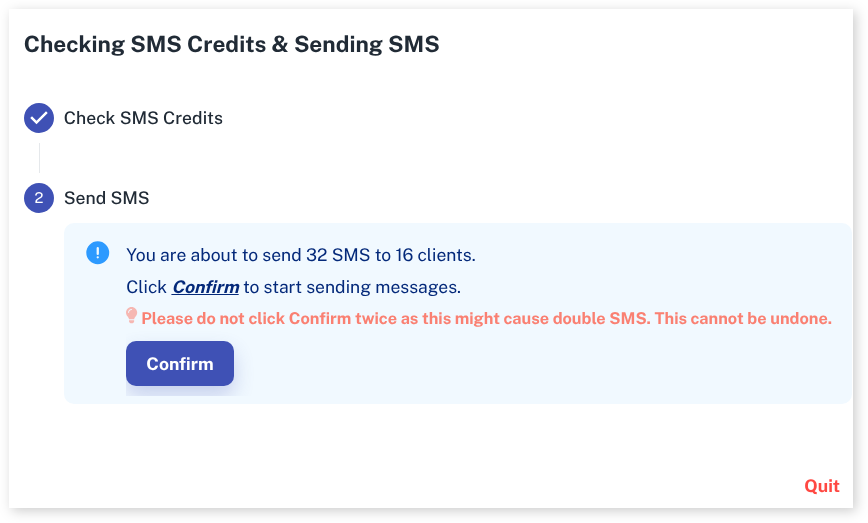
When your ready hit Confirm. Please Wait, this may take a short amount of time while your system processes this information.
NOTE: Please do not click Confirm twice as this might cause double SMS and double spend. This cannot be undone.
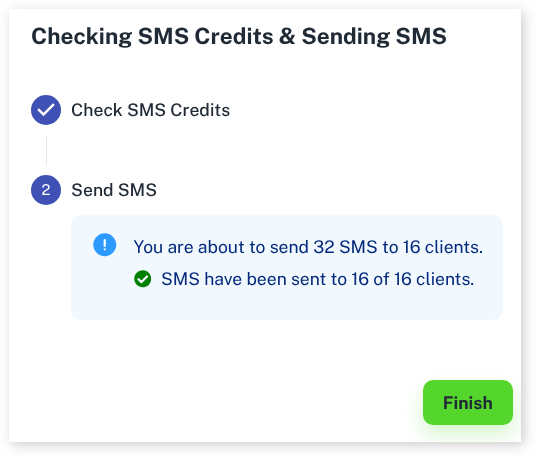
Attention: Before sending any marketing be sure to merge any duplicate clients you may have in the database. This stops clients from receiving messages twice by accident. Documentation on this is here.