Client Diary has a powerful yet simple to use feature which allows you to collect deposits from clients when making online bookings. This reduces no show rates and helps improve cash flow.

How the Process Works
- A client “Terry” makes an online booking for services that comes to $100
- You have your system set to request 50% of the total when an online booking is made, so Terry pays $50 using their credit card at the time of booking
- Terry receives a $50 credit to their account in Client Diary. So they have $50 ready to spend on their visit
- You receive $50 into your bank account via our Payment Gateway (minus any fees they charge)
- When Terry visits to have his appointment, the $50 is waiting for him to use at your POS. He simply pays the remaining $50 at the POS before he leaves.
How to Set up Pre-Payments
Ensure online booking is set up first, follow these instructions if you haven’t already.
- Head to My Account menu
- Press the Add-Ons tab
- Select the Online Bookings Setup Beta
- Scroll down to Pre-Payment and click on the drop-down
- Click Pre-payment to Yes
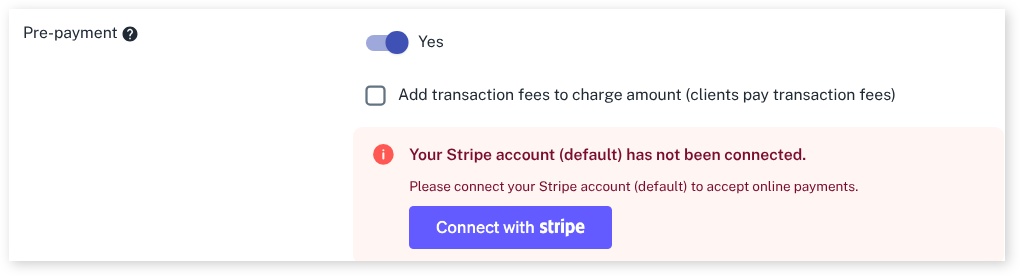
- Select the Connect with Stripe button
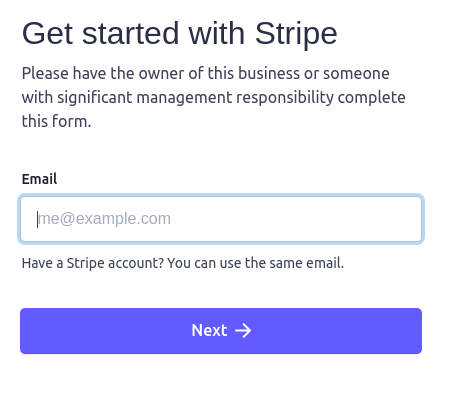
- If you have a Stripe account, log in to Stripe now
- If you don’t have a Stripe account, fill in the form and submit
After submitting your Stripe login/registration details you’ll be sent back to Client Diary. Again head back to the Online Booking area:
- Head to My Account menu – Add Ons tab at the top right – Online Bookings Setup Beta on the left
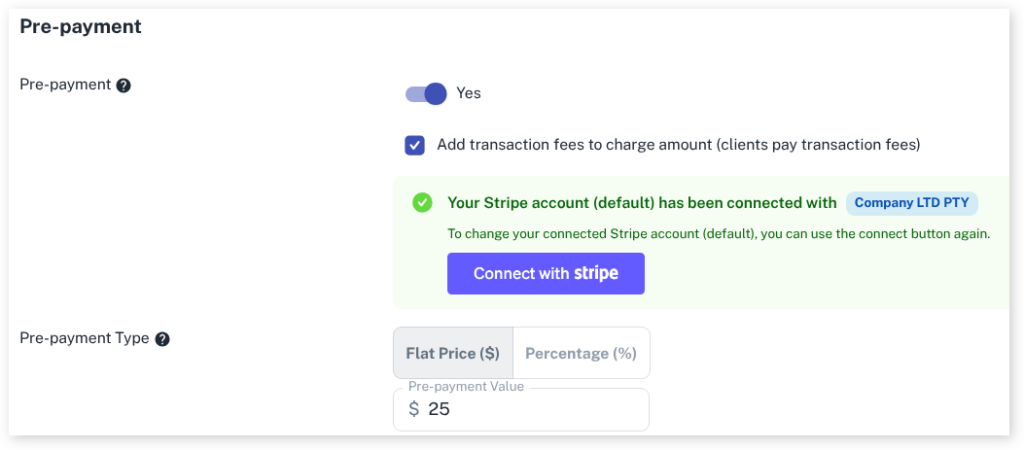
- Scroll down to the Pre-payment area and you will see there are now more options and a message stating “Your Stripe account has been connected”
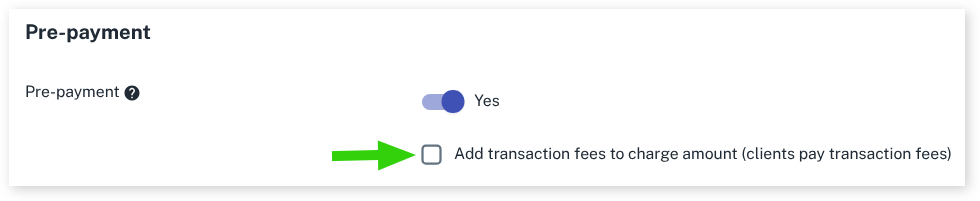
- Choose if the Transaction Fees are passed to the client
- Select either Flat Price (a dollar value) or Percentage
- Enter either the dollar value or the percentage into the Pre-payment value input
- Press the Save button
How to Set Up Conditional Pre-Payment
There are special options you can choose for pre-payments. This is what they do in detail:
- New Client Ticking this means that new clients will be asked to pre-pay, existing clients won’t be asked to
- Total booking value is more than $ If you enter a dollar value in this area, pre-payment will be required if the bill comes to or is above that dollar value
- Client has no-show in the last _ appointments If you enter a number in here the system will require pre-payments if the client has no showed in the last X visit.

In the above example, the client will need to pre-pay for their booking if:
- They are new
- or their booking value is $100 or more
- or they have had a no show appointment in the last 3 visits
This is a powerful tool to help you control who has to pre-pay and who doesn’t when making bookings.
Passing the Processing Fee to the Client
Client Diary allows you to pass any transaction fees onto the client. This allows you to have bookings created at zero cost to your business. It’s as simple as ticking this box in your settings:
How the Client Pays
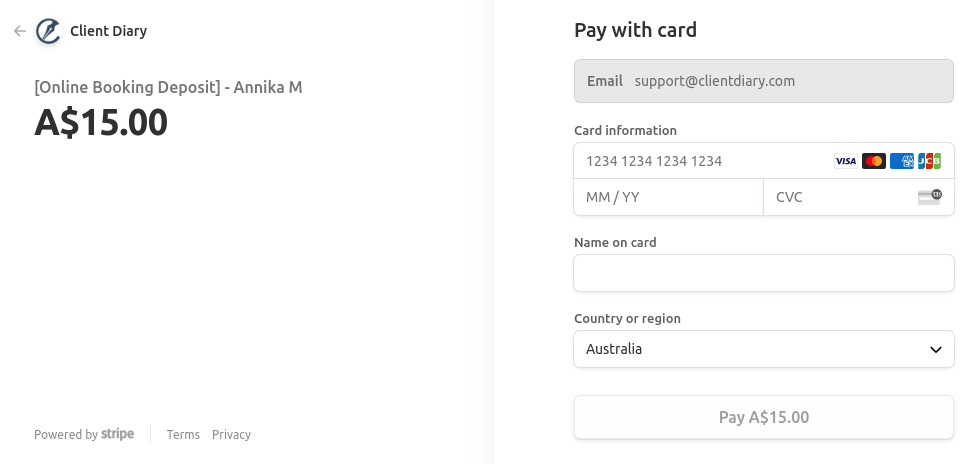
When your clients make a booking and are required to pre-pay, they will be presented to make payment before finalising the booking. The image below shows an example of what that will look like. Note if you have added your logo it will have your business name and branding.