
Setting up SMS reminders helps to reduce no show clients and helps you stop losing money.
To set up your reminders you must first have SMS credits. If you haven’t done so, please go here first and read this article on setting up your SMS credits.
- Select the My Account menu
- Click on the Marketing tab
- Select Appointment Reminders link
- Turn on the appointment reminders with the toggle button
- At the bottom set how many days before the appointment the message should go out. Most people choose either 1 or 2
- Choose what time you want the message to be sent. It’s common to send at around 9 or 10am
- Press the Save button
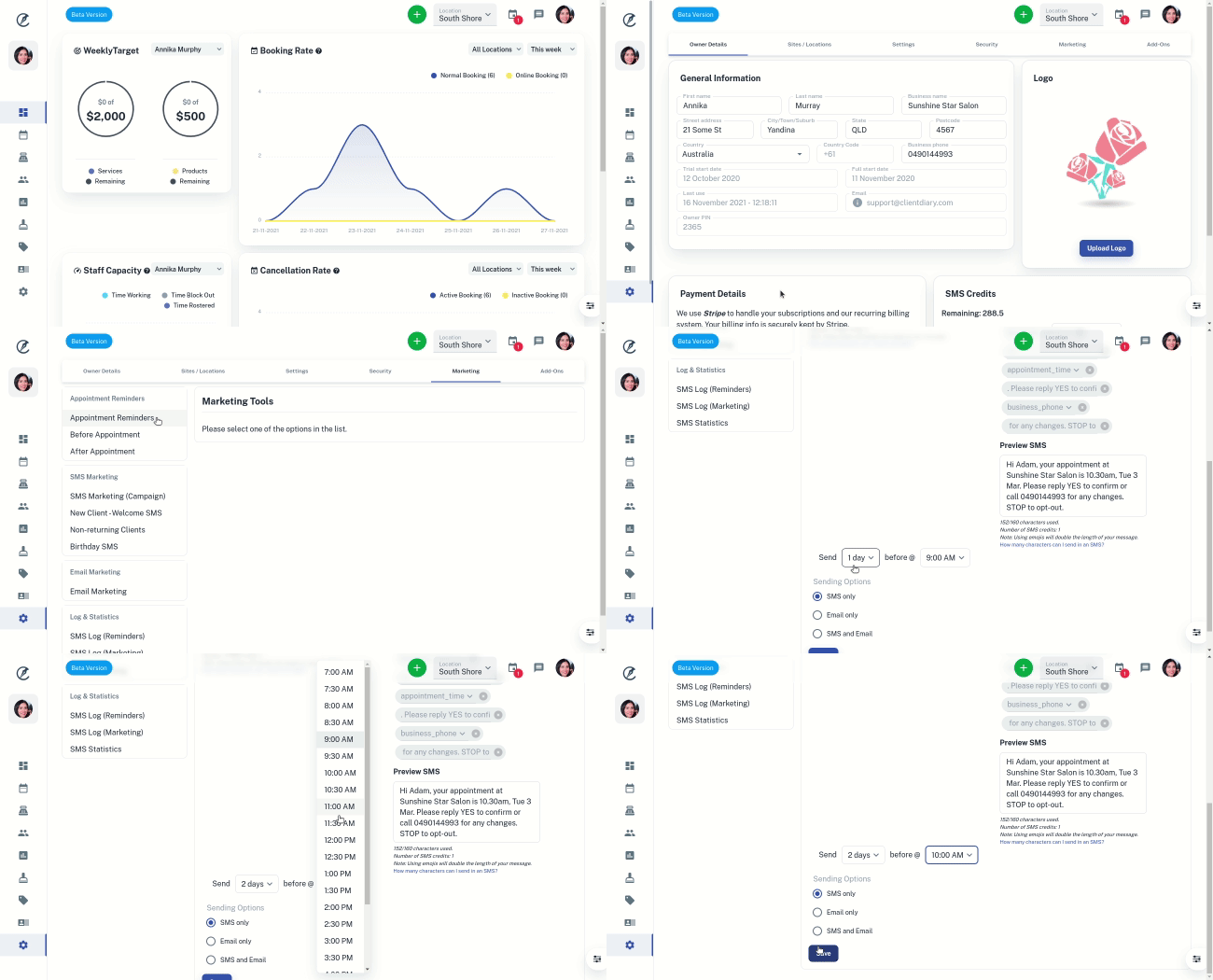
Your reminders are now set up and ready to go out.
In Client Diary, the SMS reminders are scheduled 8 days in advance, so if you run out of SMS credits, or anything happens to your card, you still have a week’s worth of SMS reminders already scheduled.
However, if you make any changes to the existing message, all future messages that were queued will still have the old message. To remove the old messages just press the Cancel Scheduled SMS button.

Then press Save Changes
After this step, all your future appointments will have the new message.
Attention: Before sending any marketing be sure to merge any duplicate clients you may have in the database. This stops clients from receiving messages twice by accident. Documentation on this is here.